
Your users probably have a few favorite keyboard shortcuts for formatting text--such as Ctrl + B for applying boldface, Ctrl + I for applying italics, Ctrl + U for underlining, and maybe Ctrl + L to left-align text.
But Word provides buttons for those tasks on the Formatting toolbar, so any efficiency gains are kind of a toss-up.
The real convenience lies in knowing some more obscure keyboard shortcuts--ones that have no default button equivalents and that can save users from having to scrounge around dialog boxes looking for the appropriate options. Here are some shortcuts that are especially good for users to have under their belt.
The shortcuts
Keystroke Function
Ctrl + Shift + D Double underline the selected text
Ctrl + ] Increase the size of selected text by 1 point
Ctrl + [ Decrease the size of selected text by 1 point
Ctrl + Shift + A Make selected text all caps
Ctrl + = Toggle subscripting for selected text
Ctrl + + Toggle superscripting for selected text
Ctrl + Shift + Q Apply Symbol font to selected text
Ctrl + Shift + N Apply Normal style to current paragraph
Ctrl + Alt + 1 Apply Heading 1 style to current paragraph
Ctrl + Alt + 2 Apply Heading 2 style to current paragraph
Ctrl + Alt + 3 Apply Heading 3 style to current paragraph
Ctrl + Shift + L Apply List Bullet style
Ctrl + 0 (zero) Apply or remove space above current paragraph
Showing posts with label TechBytes. Show all posts
Showing posts with label TechBytes. Show all posts
Thursday, March 12, 2009


Tuesday, March 10, 2009
Ten Web Browsers that You May Have Never Heard of
The browser wars is starting to heat up again due to some exciting developments in the industry. Last year, Google joined the browser wars with its Google Chrome. Firefox continues to grow and improve. And lately, Apple’s Safari browser for the Mac just released a new version. But wait, these are not just the web browsers available for us to use. There are tons of web browsers actually, each with their own set of features. Here are ten of these other browsers which you may have not heard of before.
Avant Browser - A free web browser with user-friendly interface and multi-tab browsing. Among its key features are online profile storage, autofills, flash animation filters, built-in ad/Pop-up blocker, multi-window browsing, real full-screen mode, built-in search engine, full IE compatibility, and more.
iRider - An elegant multi-page web browser that allows you to browse the web faster with multi-page browsing capability. Specifically iRider lets you fly around a visual map of all the pages and site you’re working with, surf ahead while pages are downloading, select multiple links or favorites and click only once to open all of them, and other useful functionality.
Maxthon - a powerful tabbed browser with rich set of features that provides improved web surfing experience. This web browser’s key features include tabbed browsing, mouse gestures, smart browsing acceleration, magic fill, URL aliasing, anti-freeze, super drag&drop, and more.
Flock - A web browser built from Mozilla Firefox. Having most of Firefox’s useful features, Flock decide to specialize on the social aspect of web browsing. Hence, it’s the most appropriate web browser for bloggers and social networking addicts.
Konqueror - an Open Source web browser that complies with HTML 4.01, supports Java applets, JavaScript, CSS 1, CSS 2.1, and Netscape plugins such as Flash or RealVideo. It can also be used as a universal file viewer and manager.
Lunascape - The world’s first triple engine browser that supports IE for the Trident Platform, Firefox for Gecko and Chrome for WebKit. Among its key features include crash protection functionality, mouse gestures, tab browsing, RSS News and blog info, full customization with skins and more.
Runecats Explorer Zeox - A tabbed web browser with the following features; text size changer, mini-web, search drawer and more.
NeoPlanet - A lightweight web browser that lets you control your Internet experience by customizing content channels, select your interests through the Preference Center, powerful e-mail, download manager and quick search features. NeoPlanet is also highly customizable with skins.
Ultrabrowser - Offers a fully customized web browsing solution. It boasts of dual toolbar settings, multiple themes-skin support, integrated pop-up blocker, built-in Google search, multi-search functionality, password-protected web-based bookmark manager, and more.
Shiira - An alternative web browser for Mac users. Based on a Japanese browser, Shiira’s main features include private browsing, built-in search engine, tabbed browsing, customizable drawer that contains bookmarks, RSS reader, and supports PDF viewing.
Wednesday, February 11, 2009
Add Your Current Location to Gmail Signatures Automatically
Gmail users who travel frequently will simply love this. You can now instruct Gmail to automatically add your current geographic location to all your outgoing email messages so that recipients get to know where you are at the moment.
Gmail takes the IP address of the computer from where you are sending that email and uses it to determine the city / state / country from where you are writing that email.
How to Add Location in Gmail email Signatures
Step 1: Enable the Location in Signature module from the Lab Settings of your Gmail / Google Apps of Gmail.

Step 2: Open the Setting tab of Gmail and select the check box that says "Append your location to the signature".
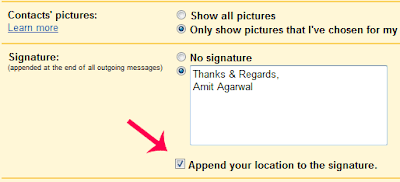
That’s it. Here how the signature would look like on the recipients computer. So instead of saying "Sent from iPhone" or "Sent from BlackBerry", your email signatures could now says "Sent from New Delhi using iPhone" or something similar.
City detection based on IP addresses may not be 100% accurate but you can always modify the detected value before sending the email.

Gmail takes the IP address of the computer from where you are sending that email and uses it to determine the city / state / country from where you are writing that email.
How to Add Location in Gmail email Signatures
Step 1: Enable the Location in Signature module from the Lab Settings of your Gmail / Google Apps of Gmail.

Step 2: Open the Setting tab of Gmail and select the check box that says "Append your location to the signature".

That’s it. Here how the signature would look like on the recipients computer. So instead of saying "Sent from iPhone" or "Sent from BlackBerry", your email signatures could now says "Sent from New Delhi using iPhone" or something similar.
City detection based on IP addresses may not be 100% accurate but you can always modify the detected value before sending the email.

Monday, February 9, 2009
Google Latitude
The latest mobile application that comes from the Google arsenal is called Google Latitude.
And what does it do?
It tells your friends and family where you are and vice versa. Yes, I know, I know, the privacy issues. As of now there have been mixed responses from around the web. But we’ll get to that later.
So what features does Latitude boast of?
The whereabouts can be tracked on a Google map using it’s My Location feature, either from a handset or from a personal computer. Besides the friend’s locations in Latitude you can also get in touch via SMS, Google Talk, Gmail, or by updating your status message.
Google tries to make all the info optional, which means that you get to choose who gets to view you, and if you do choose to let them keep a track over your position, you can also control what you wish to show them. So the next time you ditch your girlfriend for a cricket match, you can prove to her that you were in the hospital taking care of your cousin using this “fake” feature.

I know what you did last summer..
For all those who like the service, there are many many more who just don’t see it’s point. This group obviously feels that their privacy will be in danger. Imagine, if every moment of your existence, someone knew where you were, what you were doing. More over, the information is stored on Google servers. Now imagine if Google decides to mess with people, its not like they don’t have enough information about you already. Now they will know where you are with pinpoint accuracy (if you’re using a GPS enabled phone) or reasonable accuracy if you don’t have GPS.
Google also released a video explaining the privacy features of Latitude and how to use it best.

And what about the costs?
“The only cost that the consumer will have to pay is the data packet charges that are levied by the mobile operators. This has no revenue advantage for us since this it is not linked to sponsored advertising, we just want to promote the use of maps on phones,” said Vinay Goel, product chief, Google India.
But then again, it makes one wonder, how could such a service be leveraged in the future?
Competitors?
Loopt which claims to “transform your phone into a social compass” is quite similar to Google Latitude supports upto 100 phones including the Iphone (unlike Google Latitude). There’s also Pelago’s Whrrl which “allows you to discover the world through the eyes of your friends and other people you trust.”
More info
For the list of countries and languages which support Google Latitude, check here and yes, India is one of them. Strangely the Iphone comes in the coming soon category, this will surely bring a frown to the face of many. Why? Well according to Wired Magazine since Latitude is an always-on service (meaning it will be silently operating in the background), it runs afoul of Apple’s iPhone SDK. Google is reportedly working on a version of Latitude for the company’s Google Mobile App for the iPhone.
Google has posted a video showing the various ways to control your privacy and suggesting some tips on how to use Latitude. The video can be found here
To share your location from your desktop computer visit google.com/latitude and install the Latitude iGoogle gadget.Friday, February 6, 2009
How to Clean Your Internet History in Firefox
Consider this - you are sharing a computer at home, there aren’t any separate user logins and all family members use the same Firefox browser to surf the web. How do you make sure that people don’t get to know about the websites you visited last night?
In other words, how can you selectively clear such tracks from the Firefox browser without deleting the entire web browsing history?
Forget about this Site
This option is recommended if you want to erase only a couple of websites from your browser’s history.

Press Ctrl+H to access your web history in the Firefox sidebar, type some characters in the search box to find the website(s) that you want to remove, right click and select the "Forget About This Site" option as shown in the screenshot.
This option lets you delete either entire domains (like google.com) or even sub-domains (like images.google.com) from your browser history.
*If you like to selectively delete only a couple of web pages from the history (and not the entire website), just right click the web page title in the History box and select Delete This Page or hit the Del key on your keyboard.
Clear History from the Last Hour
Your family members have gone shopping and you therefore spent the last two hours browsing the 18+ web. Fine but how you do make sure that all the tracks are erased before the door bell rings.

Simple. Press Ctrl+Shift+Del in Firefox to open the "Clear Recent History" dialog and select "the last two hours" or "my history for today" option. This will delete only your recent Internet history while leaving the old data untouched so your wife will still quickly access all her previously visited sites from the address bar.
Browse Privately in Firefox
Now in situations where you don’t want to take the risk of deleting history, activate the private browsing mode in Firefox by typing about:privatebrowsing in the address bar (or choose Private Browser from the Tools menu).
This is the safest option because none of your web activities will be recorded anywhere. The private mode is turned off automatically as soon you close the browser window.

Multiple Inboxes in GMAIL
An image is worth a thousand words, so here's what my inbox looks like:

In addition to a quick view of important labels, we also like to keep all my starred and draft messages in separate panels.
After you turn on Multiple Inboxes from the Labs tab under Settings, you can configure what you want to see, as well as set the number of messages displayed and the positioning of your panels from the Multiple Inboxes section under Settings.

In addition to a quick view of important labels, we also like to keep all my starred and draft messages in separate panels.
After you turn on Multiple Inboxes from the Labs tab under Settings, you can configure what you want to see, as well as set the number of messages displayed and the positioning of your panels from the Multiple Inboxes section under Settings.
Tuesday, February 3, 2009
India Internet Bus Project launches
For the last few years, Google India has worked to increase Internet usage in our country of a billion people via various products such as SMS Search , Voice Search, and Google Map Maker, translating our interfaces into Indian languages. We've also worked on numerous initiatives to increase the quality of search with useful local information like business listings, railways and flight status, and cricket scores. We've been witnessing a steady growth in Internet adoption, but as impatient observers, we wanted to do more to directly engage the offline population of India.
In that vein, earlier today, we announced the launch of the Internet Bus Project – a mobile bus designed to showcase the benefits of the Internet to the people across the cities of Tamil Nadu. We're aiming to reach out to people with limited exposure to the Internet, and the bus will cover numerous Tamil Nadu cities over the next month and a half.
The bus is designed to make a simple introduction to the Internet for a new user. With a focus on the four themes of education, information, communication, and entertainment, the Internet Bus will be loaded with useful and informative content in English and Tamil. We'll showcase how the Internet can make everyday life simple through services like search, email, social networking, maps and others.
We strongly believe the Internet is a great equalizing force, and this project represents another way Google is directly engaging with people in India.
We welcome you to visit the Internet Bus Project website at http://www.google.co.in/internetbus to see when the bus will visit your city, get regular updates, and view photos and videos as we travel around Tamil Nadu.
Monday, February 2, 2009
How to Say ‘No to All’ During File Copy Operations in Windows
While copying or moving a large number of files from one location to another folder in Windows, you may often encounter errors or warning messages saying the file(s) you are trying to copy already exists in the target location.

Windows No to All - Keyboard Shortcut
If you are using a previous version of Windows (like XP or Windows 2000 but not Vista), the default error window will offer four choices - "Yes", "No", "Yes to All" and "Cancel".
There’s no "No to All" button in the File Replacement dialog but you can simply hold down the Shift Key before pressing the No button and Windows will automatically interpret this action as a "No to All" command.
This will be so useful when you are copying a large number of files and folders but don’t want to overwrite content that already exists at the target.

Friday, January 2, 2009
Perform Case Sensitive Search with Google

There are however instances when the case of a search query is as important as the search phrase itself because the word meaning can change with the case. Some examples of Capitonym words include March (month) & march (walk), Polish (language of Poland) & polish (to shine), Bill (person’s name) & bill (invoice), etc.
For instance, "Ram" is the name of a Hindu God while "RAM" is an abbreviation for Random Access Memory. They both share the same spelling and it’s the case that helps you understand the real context of the word. Unfortunately, Google searches are not case sensitive (or fold case) and hence most search results for Ram or RAM are about the "temporary" memory.
To solve this problem and help you conduct case sensitive searches on Google, someone has created a Google Appengine powered search engine at Case Sensitive Search - it scans through Google search results and filters out results that match the case of your search query.
Coming back to original example, here’s is a comparison of case sensitive Google search results for "Ram" vs. "RAM".

How to Do Everything with PDF Files(Useful)
Adobe PDF is the best format for sharing documents because they are compact, the formatting is preserved and most computers / mobile devices / ebook readers can easily handle PDF files.
Here you’ll learn how to do just about everything with PDF documents without buying Adobe Acrobat. You can edit PDF files, combine multiple files as one, add signature images to PDF pages, fill PDF forms online, add clickable hyperlinks to existing PDF documents and so much more.
Adobe PDF Guide and Tutorial
Q: First things first - How do I create PDF documents on my computer without Adobe Acrobat?
A: Get a copy of DoPDF - it installs as a virtual printer driver on your desktop just like Acrobat and lets you print PDF files from any Windows application including images, documents, emails, websites, etc.
Q: I don’t want to install software just for converting a bunch of documents to PDF. Do you know of any alternative?
A: Upload your documents to Google Docs via the browser and then export them as PDF files. Simple.
Q: A client just sent me a PowerPoint presentation by email. Since I am travelling without the laptop and my mobile phone cannot read PPT files, what should I do?
A: Forward that email message (with the PPT attachment) to pdf@koolwire.com - they’ll convert the presentation to PDF and email to you immediately. Most mobile phones can read PDF files.
Q: How do I directly save a web page as PDF without having to save that page as an HTML file first?
A: Go to PrimoPDF, type the URL of the web page and they’ll send you a PDF version of that page via email.
Q: How can I convert PDF files into other formats like Word documents, images, HTML web pages, etc.
A: You can upload the PDF document to Zamzar and convert it any formats like doc, html, png, txt or rtf (rich text format). Alternatively, you can convert PDF to HTML using Gmail.
Q: How do I create a single PDF package by merging files of different formats.
A: Try Loop PDF - it’s a free service that lets you combine multiple documents, images and even web pages into a single PDF file.
Q: How do I merge two or more PDF files into one? Can I also change the page order?
A: You can grab PDF Fill - it’s a versatility PDF editing tool that lets you combine PDFs from the desktop. PDF Fill can also help you rearrange pages in any order or for rotating pages inside a PDF.
Q: I want to extract some text from a PDF and use it in my Word document. What is the best option?
A: Go to PDFTextOnline and upload your PDF - it will extract text from the first 10 pages of your PDF document (to start) and will also show the PDF bookmarks, document properties, and form data (if available).
Q: I can’t get the above trick to work since I have a scanned PDF.
A: You can extract text from scanned PDF documents with Google Search. It’s not an instant process but probably the only free solution we know of.
Q: I have some restricted PDF documents on my computer in the sense that they neither allow printing nor can you select text with the mouse.
A: Get the PDF Unlocker - its a free Windows utility that will remove all common restrictions around a PDF file without requiring any passwords. Alternatively, you may use the online service at ensode.net that will remove all the printing or copying/pasting related restrictions from your PDF.
Q: Some PDF files on our company’s intranet are protected by a password that no one can remember anymore. Can we still open them?
A: Check this article - How to Open Password Protected PDF
Q: I am looking for a service that would let visitors download my articles as PDF files.
A: Add the Web2PDF button anywhere in your website - it converts web pages to PDF files on demand and also keeps a track of all PDF conversion related activities on your website.
Q: Someone sent me a PDF document in Chinese but I can read only English?
A: You can easily translate PDF files using Google Translate and Zoho Viewer.
Q: How can I add annotations or text notes to some of my PDF documents?
A: Get the PDF-X Viewer - it’s like Adobe Reader but with some extra features. You can add comments, annotations or even paste images to your PDF pages. You can also add annotations, call-outs and text to your PDFs online with PDF Escape.
Q: How do I read PDF files online without desktop software?
A: You can open PDF documents in the browser with PDFMeNot without requiring any software. See more options.
Q: Can I fill PDF forms online without Acrobat Reader?
A: Sure, go to PDF Filler, upload the PDF form and start typing. PDF typewriter works by converting PDF forms into images and allowing the user to type right on top of the images.
Q: How can I add watermarks or even my (real) signature to a PDF document?
A: First draw your signature in Paint (or other photo editing tool) and save it as an image. Make sure you crop all the blank portion that lies outside the signature. Now open the PDF document inside PDF-X Viewer and copy-paste that watermark / signature image. Simple.
Q: I have a PDF book that contains some 200 pages. Is there a way to extract selected pages from that book and save it as another PDF.
A: You can either PDF Merge or PDF SAM (split and merge) to extract pages from a PDF document.
Q: How can I protect my PDF documents with a password?
A: Upload your PDF file to PDF Hammer, set a security password and export it as PDF again.
Q: A PDF document has lot of links but I can’t click them as they are in plain text. How do I make them clickable?
A: Go to PDF Escape, upload the PDF and then place hyperlinks anywhere on the page.
Q: Which online service(s) would you recommend for uploading PDF files on the web?
A: My favorite is Issuu - they have built an excellent PDF viewer inside a beautiful interface. You can also use Issue to embed PDF files in your own website. Next recommendation is Scribd - it’s a more popular service so your PDF document would get more eye balls.
Thursday, December 11, 2008
SMS while chat in Google
How often do you try to chat with somebody and they don't respond because they just walked away from their computer? Or maybe you're in the middle of chatting with them just as they need to leave. But you still need to tell them something -- something really important like you've moved where you're meeting...or ice cream! We need ice cream! This is why we built a way to chat with your friends even when they're away from their computers. Now you can keep the conversations going with a new Labs feature that lets you send SMS text messages right from Gmail. It combines the best parts of IM and texting: you chat from the comfort of your computer, and your friends can peck out replies on their little keyboards.
A few weeks back, google ran into a few snags when we first started rolling this out, but starting today you can turn on text messaging for chat. Just click on Settings, and go to the Labs tab. Scroll down until you see "Text Messaging (SMS) in Chat" and select Enable and Save Changes.
We're just trying it out for cell phones in the United States right now, but you can send texts to your friends with US phone numbers from anywhere in the world. You can start by just typing a phone number or into the search box in the chat window on the left, then select "Send SMS." You can also select the contact you want to SMS first and then add their phone number.

Once you give us a name for that phone number, you'll be able to start chatting.

We'll save your friends' numbers in your Contacts, so next time you can just type their name in the chat box and select Send SMS.
On the receiving end, when you get a text message from Gmail on your phone, it will come from a number in the 406 area code. (The l33t folks in the crowd will note that this spells G0O.) You can reply to this text on your phone just like you'd reply to any other text. The reply gets routed back to our Gmail servers and shows up in your friend's Gmail chat window. Each of your friends' messages will come from a different 406 number so you can reply to any message and it will get back to the right person. Messages from the same person will always come from the same number, so you can even bookmark it in your phone.
If you get a message from somebody you don't want to chat with from your phone, just reply with the word BLOCK. If you don't want to get texts from anybody using Gmail, reply with the word STOP and we'll leave you alone. Keep in mind that all these text messages count as part of your regular mobile messaging plan and might incur fees. So unless you know your friends have unlimited text message plans, please be sensitive to their phone bills.
A few weeks back, google ran into a few snags when we first started rolling this out, but starting today you can turn on text messaging for chat. Just click on Settings, and go to the Labs tab. Scroll down until you see "Text Messaging (SMS) in Chat" and select Enable and Save Changes.
We're just trying it out for cell phones in the United States right now, but you can send texts to your friends with US phone numbers from anywhere in the world. You can start by just typing a phone number or into the search box in the chat window on the left, then select "Send SMS." You can also select the contact you want to SMS first and then add their phone number.

Once you give us a name for that phone number, you'll be able to start chatting.

We'll save your friends' numbers in your Contacts, so next time you can just type their name in the chat box and select Send SMS.
On the receiving end, when you get a text message from Gmail on your phone, it will come from a number in the 406 area code. (The l33t folks in the crowd will note that this spells G0O.) You can reply to this text on your phone just like you'd reply to any other text. The reply gets routed back to our Gmail servers and shows up in your friend's Gmail chat window. Each of your friends' messages will come from a different 406 number so you can reply to any message and it will get back to the right person. Messages from the same person will always come from the same number, so you can even bookmark it in your phone.
If you get a message from somebody you don't want to chat with from your phone, just reply with the word BLOCK. If you don't want to get texts from anybody using Gmail, reply with the word STOP and we'll leave you alone. Keep in mind that all these text messages count as part of your regular mobile messaging plan and might incur fees. So unless you know your friends have unlimited text message plans, please be sensitive to their phone bills.
Tuesday, December 9, 2008
Computer Glossary
AGP
Accelerated Graphics Port is a type of expansion card slot on the mother board that is optimized to work with high performance video cards. They enable better viewing of 3D graphics and full motion video on your display.
BIOS
Basic Input Output System is code used when a PC first starts up. It contains configuration information about all the Input and Output devices in the PC so that the processor chip knows how to connect to and work with them.
BIT
This is binary digit and is the smallest piece of information a computer uses. A bit is always in one of two states, either 0 or 1, except for the tiny instant of time required to switch from one state to the other.
BYTE
A byte is eight bits. The data and instructions (code) that a CPU uses are coded into bytes. For example capital letter ‘A’ in ASCII (PC) code is byte 0100 0001. A lower case ‘a’ is byte 0110 0001.
BROWSER
Software on a computer used to request and display web pages from a Server.
CABLE MODEM
A type of modem that provides very high speed access to the Internet over the same cable that your cable TV service uses. Rates are asymmetric. This means that downloads are much faster than uploads. Typical download rates are 2 to 3 Mbps and uploads are in the 500Kbs range. This is blazing speed compared to a 56Kbps dial-up modem.
CACHE
Cache is a small fast SRAM type of memory. It prevents CPU slowdown, which happens when the CPU has to wait on slower devices like RAM memory and the hard drive. There are two levels of cache.
Level 1 or L1 cache is a small fast memory located on the same chip as the CPU. When files are first requested by the CPU they are read into the CPU from the hard drive and written into the L1 cache at the same time. When the CPU needs data again it checks the L1 cache and if it finds it there it gets it instantly. If not, it looks successively in the L2 cache, RAM and finally the hard drive, each of which is a little slower in delivering the data the CPU has requested.
If the CPU finds the data it wants in a cache it’s called a ‘hit’ and that’s good. If it doesn’t it’s called a ‘miss’ which makes the CPU wait a little longer to get the data or instruction it needs from one of the other slower devices.
This little bit of time saved by cache hits may not seem significant, but keep in mind that millions of accesses can be performed in a second. Every cache hit shaves time off the data access. Every cache miss adds time to the access. Cache misses lower performance and cache hits raise it!
Because level 2 or L2 cache is located in chips on the motherboard or on the board that holds the CPU it takes a little longer to access than the L1 cache.
L2 cache is becoming more important as it grows in size and performance. The L1 cache is very small because it is on the same chip as the large CPU. Due to it’s small size, chances are high that the CPU won’t find the data it needs there. An L1 cache miss causes the CPU to look in the L2 cache for the data.
The long and short of all this - If the data the CPU needs is not found in the L1 cache or L2 cache, the CPU must to wait to get it from the RAM memory. And if it isn’t in RAM, then the CPU goes on vacation for a number of milliseconds, which is a long time in the CPU world, while the data is retrieved from the hard drive.
CDD
Compact Disk Drive is a storage device that uses optics to read data from compact disks. CDDs that can read as well as write are very popular now.
CPU
The Central Processing Unit is a special chip that controls what happens in a PC. It fetches instructions and does high speed computations on data. It is somewhat like our brain in that it controls everything we do.
DIMM
Dual Inline Memory Module is a small printed circuit board that contains DRAM memory chips. When we say a PC has 256 MBytes of memory we are talking about the total capacity of all the DIMM modules installed in it.
Modern motherboard provide two to four sockets that accept DIMMs.
DOMAIN NAME
A unique name, formed with letters and numbers, that points to the actual numerical Internet address which locates a particular computer connected to the Internet. For instance, The Yahoo domain name points to Internet address 66.218.71.198.
So when you enter www.yahoo.com in your browser and click go, a special server called a domain name server intercepts and directs your request to the server located at address 66.218.71.198.
DRAM
Dynamic Random Access Memory is type of memory that must constantly be refreshed to retain it contents. It is used as the main memory in a PC and is packaged in DIMMs which plug into the motherboard.
DSL Modem
DSL stands Digital Subscriber Line. The DSL modem is a fairly new device, which allows high speed data to move between your PC and the telephone company on the same line that you use for your telephone calls. Yes. you can use your PC and talk over this line at the same time without interference!
How? Picture of a double-decker bridge with two levels. The traffic on the two levels does not interfere with each other even though it is the same bridge, right? Think of your phone call using the lower level and your PC using the upper level. Instead of being separated by different levels in space, the separation is done by your PC and voice each using a different carrier frequency, just like two different radio stations.
FAT16
FAT is the abbreviation for File Allocation Table. It is a table where the system keeps basic information for each file on your hard drive. The 16 indicates the number of bits used to address the hard drive. The largest partition FAT16 can access is 2MB. When used on a hard drive that is bigger than 2MB the drive space will be divided into a number of partitions.
For example a 10MB drive would be divided into five partitions of 2MB each. If the drive were the only one in the system the partitions would be called C:, D:, E:, F:, and G:.
FAT32
FAT is the abbreviation for File Allocation Table. It is a table where the system keeps basic information for each file on your hard drive. The 32 indicates the number of bits used to address the hard drive. The largest partition FAT32 can access is 2 Terabytes (two trillion bytes)! So far there are no hard drives I know of that begin to approach this size. Windows 98 was the first of the Windows OS to support this file structure.
FDD
Floppy Disk Drive is a device which provides a way for the PC to read and write floppy disks, which are a type of removable storage media. Floppy disks (3 1/2 inch) have a capacity of 1.44 Mbytes. When PCs first came out, floppy disks were 5 1/4 inch and held 720 Kbytes.
FIREWIRE
Firewire also known as IEEE 1394 or iLink is a very fast serial bus that runs at 400 Mbps. It competes directly against USB 2.0. Transmit and Receive data are carried on two separately-shielded twisted pair transmission lines. There are two other, rarely used, wires that provide power to remote devices.
Many newer computers have Firewire ports that are used to connect them to very fast external devices.
FTP
File Transfer Protocol is the method used by computers to send and receive files over the Internet.
HTML
Hyper Text Markup Language is the coding that is used to format web pages on Servers so that Browsers can display them.
HTTP
Hyper Text Transport Protocol is used by browsers and servers to facilitate the transport of web pages across the Internet.
HDD
Hard Disk Drive is a device that provides a large fixed typically (non removable) storage area. Some units today easily removable from the front of the PC. The capacity of HDDs has continued to increase. 40Gbyte drives are readily available and inexpensive. The HDDs used in the first PC had only 10Mbytes of storage.
IDE
Integrated Drive Electronics refers to the electronic control section of a Hard or Floppy Drive. This control section coordinates the electromechanical operation of the drive so that data can be written to and read from the spinning disk inside it. The motherboard connects to Drives over an IDE ribbon cable.
I/O
This means Input/Output. Input is data or signals that are fed into a device. Output is data or signals that a device drives to the outside. Some devices can do both, others are only one or the other.
ISA
Industry Standard Architecture refers to a type of expansion slot on the motherboard. It is the oldest of all expansion type slots and first appeared in the IBM PC XT. Thousands of expansion or add-on cards as they are also called, have been designed to plug into the ISA slot. The use of expansion cards vastly extends the function and capability of the PC.
MEMORY NON-VOLATILE
Memory is a device that retains information electronically. When power is removed the information is retained.
MEMORY VOLATILE
Memory is a device that retains information electronically. When power is removed the information is lost. The DRAM memory used in a PC is the volatile type.
OS
Operating Systems are the basic foundation or platform programs that allow you to load and run other programs on a PC. Windows 95 is an example of an Operating System.
PARALLEL PORT
The parallel port is a standard port on a PC and moves data out of the PC. One byte (eight bits in parallel) are sent out on 8 pins for each data transfer. Historically this port is connected to your printer. It also known as a ‘Centronics’ port, named after the manufacturer of the 38- pin connector first used on the parallel port.
PCI
Peripheral Component Interconnect refers to a type of expansion slot found on PC motherboards. It is a newer type of expansion slot than ISA, and many types of Add-On cards have been designed to use it.
RANDOM ACCESS
This refers to an access method. It means that any random location in a storage or memory device can be immediately accessed, with out going serially to get there. It’s like a cassette where your at the beginning and have to wind through everything on the tape to get to the last song! Compact Disks and PC Main memory are random access devices.
SERIAL ACCESS
This access method is found in audio or video cassettes. It means you can not access any location you choose to instantly. You might have to rewind or fast forward through lots of information you are not interested in to get to where you want to go.
SERIAL PORT
The serial port is standard port on a PC and can move data in and out of the PC. The serial port moves one bit on each data transfer. Many different types of devices connect to a PC through it.
SERVER
Software on a computer that serves web pages in response to requests from a Browser.
SIMM
Single Inline Memory Module is a small printed circuit board that contains DRAM memory. This is an older board style that was used in PCs before DIMMs were developed.
SRAM
Static Random Access Memory is type of memory that retains data without being refreshed. It is used in the cache memories of the PC.
TROJAN HORSE
Trojan horses are dangerous programs that appear like they might perform some useful task, or provide entertainment. This false appearance encourages people to run them. When they are run, they can damage files or place a virus on your computer.
Unlike a virus a Trojan horse does not replicate and spread. Since it isn’t a virus it can’t be repaired and must be erased from your computer.
USB
Universal Serial Bus is a high speed serial bus found on all newer PCs. Eventually it will obsolete the serial and parallel ports still found on most PCs.
USB specifies three data rates. Every USB port may not support the highest rate. If you buy a device with a USB port, make sure out find out which rates it does support.
Low speed - 1.5Mb/s
Full Speed - 12Mb/s
High Speed - 480 Mb/s
VIDEO ADAPTER
The video adapter is circuit board found in the PC or monitor that controls how data is converted and sent to the monitor for viewing.
Most displays and video adapters adhere to the Video Graphics Array (VGA) standard, which describes how data - the red, green, blue data streams - are passed from the computer to the display.
In addition, it defines the frame refresh rates in hertz and the number and width of horizontal lines, which in turn identifies the screen resolution in pixels.
Here are some of the video standards that have been used:
* CGA is 320 x 200 - developed in 1981 by IBM, no longer in use.
* EGA is 640 x 350 - developed in 1984 by IBM, no longer in use.
* VGA is 640 x 480 - developed in 1987 by IBM and still in use.
* Super VGA is 800 x 600.
* Extended Graphics Adapter, XGA is 1024 x 768.
* Super XGA is 1280 x 1024.
* Ultra XGA is 1600 x 1200.
VIRUS
It is a program designed to change the way your computer operates without your permission or knowledge. When a virus attaches itself to another file, it infects it. Any time you activate an infected file it can damage files, cause erratic system behavior, or display messages. Some system viruses are programmed specifically to corrupt programs, delete files, or erase your disk.
Viruses are inactive until you run an infected program, start your computer from a disk with infected system files, or open an infected file. Once a virus is active in memory it can infect any other programs, local or network, that you run.
Files infected with a virus can be inoculated (the virus is removed from the program).
WORM
Worms are a close cousin to viruses and Trojan Horses. Unlike a virus they don’t infect other programs. They do however make many copies of themselves in memory, which effectively consumes all your memory. This leaves no memory to run you regular programs. Your PC may behave very erratically, or just grind to a halt!
Some worms get into your e-mail list and e-mail themselves to everyone on your e-mail list without you knowledge. When each unsuspecting recipient opens such an e-mail, it broadcasts itself to everyone on their e-mail list. This is how worms rapidly travel throughout the Internet! Worms can not be repaired since they are not viruses. They must be erased from your computer, the sooner the better!
Accelerated Graphics Port is a type of expansion card slot on the mother board that is optimized to work with high performance video cards. They enable better viewing of 3D graphics and full motion video on your display.
BIOS
Basic Input Output System is code used when a PC first starts up. It contains configuration information about all the Input and Output devices in the PC so that the processor chip knows how to connect to and work with them.
BIT
This is binary digit and is the smallest piece of information a computer uses. A bit is always in one of two states, either 0 or 1, except for the tiny instant of time required to switch from one state to the other.
BYTE
A byte is eight bits. The data and instructions (code) that a CPU uses are coded into bytes. For example capital letter ‘A’ in ASCII (PC) code is byte 0100 0001. A lower case ‘a’ is byte 0110 0001.
BROWSER
Software on a computer used to request and display web pages from a Server.
CABLE MODEM
A type of modem that provides very high speed access to the Internet over the same cable that your cable TV service uses. Rates are asymmetric. This means that downloads are much faster than uploads. Typical download rates are 2 to 3 Mbps and uploads are in the 500Kbs range. This is blazing speed compared to a 56Kbps dial-up modem.
CACHE
Cache is a small fast SRAM type of memory. It prevents CPU slowdown, which happens when the CPU has to wait on slower devices like RAM memory and the hard drive. There are two levels of cache.
Level 1 or L1 cache is a small fast memory located on the same chip as the CPU. When files are first requested by the CPU they are read into the CPU from the hard drive and written into the L1 cache at the same time. When the CPU needs data again it checks the L1 cache and if it finds it there it gets it instantly. If not, it looks successively in the L2 cache, RAM and finally the hard drive, each of which is a little slower in delivering the data the CPU has requested.
If the CPU finds the data it wants in a cache it’s called a ‘hit’ and that’s good. If it doesn’t it’s called a ‘miss’ which makes the CPU wait a little longer to get the data or instruction it needs from one of the other slower devices.
This little bit of time saved by cache hits may not seem significant, but keep in mind that millions of accesses can be performed in a second. Every cache hit shaves time off the data access. Every cache miss adds time to the access. Cache misses lower performance and cache hits raise it!
Because level 2 or L2 cache is located in chips on the motherboard or on the board that holds the CPU it takes a little longer to access than the L1 cache.
L2 cache is becoming more important as it grows in size and performance. The L1 cache is very small because it is on the same chip as the large CPU. Due to it’s small size, chances are high that the CPU won’t find the data it needs there. An L1 cache miss causes the CPU to look in the L2 cache for the data.
The long and short of all this - If the data the CPU needs is not found in the L1 cache or L2 cache, the CPU must to wait to get it from the RAM memory. And if it isn’t in RAM, then the CPU goes on vacation for a number of milliseconds, which is a long time in the CPU world, while the data is retrieved from the hard drive.
CDD
Compact Disk Drive is a storage device that uses optics to read data from compact disks. CDDs that can read as well as write are very popular now.
CPU
The Central Processing Unit is a special chip that controls what happens in a PC. It fetches instructions and does high speed computations on data. It is somewhat like our brain in that it controls everything we do.
DIMM
Dual Inline Memory Module is a small printed circuit board that contains DRAM memory chips. When we say a PC has 256 MBytes of memory we are talking about the total capacity of all the DIMM modules installed in it.
Modern motherboard provide two to four sockets that accept DIMMs.
DOMAIN NAME
A unique name, formed with letters and numbers, that points to the actual numerical Internet address which locates a particular computer connected to the Internet. For instance, The Yahoo domain name points to Internet address 66.218.71.198.
So when you enter www.yahoo.com in your browser and click go, a special server called a domain name server intercepts and directs your request to the server located at address 66.218.71.198.
DRAM
Dynamic Random Access Memory is type of memory that must constantly be refreshed to retain it contents. It is used as the main memory in a PC and is packaged in DIMMs which plug into the motherboard.
DSL Modem
DSL stands Digital Subscriber Line. The DSL modem is a fairly new device, which allows high speed data to move between your PC and the telephone company on the same line that you use for your telephone calls. Yes. you can use your PC and talk over this line at the same time without interference!
How? Picture of a double-decker bridge with two levels. The traffic on the two levels does not interfere with each other even though it is the same bridge, right? Think of your phone call using the lower level and your PC using the upper level. Instead of being separated by different levels in space, the separation is done by your PC and voice each using a different carrier frequency, just like two different radio stations.
FAT16
FAT is the abbreviation for File Allocation Table. It is a table where the system keeps basic information for each file on your hard drive. The 16 indicates the number of bits used to address the hard drive. The largest partition FAT16 can access is 2MB. When used on a hard drive that is bigger than 2MB the drive space will be divided into a number of partitions.
For example a 10MB drive would be divided into five partitions of 2MB each. If the drive were the only one in the system the partitions would be called C:, D:, E:, F:, and G:.
FAT32
FAT is the abbreviation for File Allocation Table. It is a table where the system keeps basic information for each file on your hard drive. The 32 indicates the number of bits used to address the hard drive. The largest partition FAT32 can access is 2 Terabytes (two trillion bytes)! So far there are no hard drives I know of that begin to approach this size. Windows 98 was the first of the Windows OS to support this file structure.
FDD
Floppy Disk Drive is a device which provides a way for the PC to read and write floppy disks, which are a type of removable storage media. Floppy disks (3 1/2 inch) have a capacity of 1.44 Mbytes. When PCs first came out, floppy disks were 5 1/4 inch and held 720 Kbytes.
FIREWIRE
Firewire also known as IEEE 1394 or iLink is a very fast serial bus that runs at 400 Mbps. It competes directly against USB 2.0. Transmit and Receive data are carried on two separately-shielded twisted pair transmission lines. There are two other, rarely used, wires that provide power to remote devices.
Many newer computers have Firewire ports that are used to connect them to very fast external devices.
FTP
File Transfer Protocol is the method used by computers to send and receive files over the Internet.
HTML
Hyper Text Markup Language is the coding that is used to format web pages on Servers so that Browsers can display them.
HTTP
Hyper Text Transport Protocol is used by browsers and servers to facilitate the transport of web pages across the Internet.
HDD
Hard Disk Drive is a device that provides a large fixed typically (non removable) storage area. Some units today easily removable from the front of the PC. The capacity of HDDs has continued to increase. 40Gbyte drives are readily available and inexpensive. The HDDs used in the first PC had only 10Mbytes of storage.
IDE
Integrated Drive Electronics refers to the electronic control section of a Hard or Floppy Drive. This control section coordinates the electromechanical operation of the drive so that data can be written to and read from the spinning disk inside it. The motherboard connects to Drives over an IDE ribbon cable.
I/O
This means Input/Output. Input is data or signals that are fed into a device. Output is data or signals that a device drives to the outside. Some devices can do both, others are only one or the other.
ISA
Industry Standard Architecture refers to a type of expansion slot on the motherboard. It is the oldest of all expansion type slots and first appeared in the IBM PC XT. Thousands of expansion or add-on cards as they are also called, have been designed to plug into the ISA slot. The use of expansion cards vastly extends the function and capability of the PC.
MEMORY NON-VOLATILE
Memory is a device that retains information electronically. When power is removed the information is retained.
MEMORY VOLATILE
Memory is a device that retains information electronically. When power is removed the information is lost. The DRAM memory used in a PC is the volatile type.
OS
Operating Systems are the basic foundation or platform programs that allow you to load and run other programs on a PC. Windows 95 is an example of an Operating System.
PARALLEL PORT
The parallel port is a standard port on a PC and moves data out of the PC. One byte (eight bits in parallel) are sent out on 8 pins for each data transfer. Historically this port is connected to your printer. It also known as a ‘Centronics’ port, named after the manufacturer of the 38- pin connector first used on the parallel port.
PCI
Peripheral Component Interconnect refers to a type of expansion slot found on PC motherboards. It is a newer type of expansion slot than ISA, and many types of Add-On cards have been designed to use it.
RANDOM ACCESS
This refers to an access method. It means that any random location in a storage or memory device can be immediately accessed, with out going serially to get there. It’s like a cassette where your at the beginning and have to wind through everything on the tape to get to the last song! Compact Disks and PC Main memory are random access devices.
SERIAL ACCESS
This access method is found in audio or video cassettes. It means you can not access any location you choose to instantly. You might have to rewind or fast forward through lots of information you are not interested in to get to where you want to go.
SERIAL PORT
The serial port is standard port on a PC and can move data in and out of the PC. The serial port moves one bit on each data transfer. Many different types of devices connect to a PC through it.
SERVER
Software on a computer that serves web pages in response to requests from a Browser.
SIMM
Single Inline Memory Module is a small printed circuit board that contains DRAM memory. This is an older board style that was used in PCs before DIMMs were developed.
SRAM
Static Random Access Memory is type of memory that retains data without being refreshed. It is used in the cache memories of the PC.
TROJAN HORSE
Trojan horses are dangerous programs that appear like they might perform some useful task, or provide entertainment. This false appearance encourages people to run them. When they are run, they can damage files or place a virus on your computer.
Unlike a virus a Trojan horse does not replicate and spread. Since it isn’t a virus it can’t be repaired and must be erased from your computer.
USB
Universal Serial Bus is a high speed serial bus found on all newer PCs. Eventually it will obsolete the serial and parallel ports still found on most PCs.
USB specifies three data rates. Every USB port may not support the highest rate. If you buy a device with a USB port, make sure out find out which rates it does support.
Low speed - 1.5Mb/s
Full Speed - 12Mb/s
High Speed - 480 Mb/s
VIDEO ADAPTER
The video adapter is circuit board found in the PC or monitor that controls how data is converted and sent to the monitor for viewing.
Most displays and video adapters adhere to the Video Graphics Array (VGA) standard, which describes how data - the red, green, blue data streams - are passed from the computer to the display.
In addition, it defines the frame refresh rates in hertz and the number and width of horizontal lines, which in turn identifies the screen resolution in pixels.
Here are some of the video standards that have been used:
* CGA is 320 x 200 - developed in 1981 by IBM, no longer in use.
* EGA is 640 x 350 - developed in 1984 by IBM, no longer in use.
* VGA is 640 x 480 - developed in 1987 by IBM and still in use.
* Super VGA is 800 x 600.
* Extended Graphics Adapter, XGA is 1024 x 768.
* Super XGA is 1280 x 1024.
* Ultra XGA is 1600 x 1200.
VIRUS
It is a program designed to change the way your computer operates without your permission or knowledge. When a virus attaches itself to another file, it infects it. Any time you activate an infected file it can damage files, cause erratic system behavior, or display messages. Some system viruses are programmed specifically to corrupt programs, delete files, or erase your disk.
Viruses are inactive until you run an infected program, start your computer from a disk with infected system files, or open an infected file. Once a virus is active in memory it can infect any other programs, local or network, that you run.
Files infected with a virus can be inoculated (the virus is removed from the program).
WORM
Worms are a close cousin to viruses and Trojan Horses. Unlike a virus they don’t infect other programs. They do however make many copies of themselves in memory, which effectively consumes all your memory. This leaves no memory to run you regular programs. Your PC may behave very erratically, or just grind to a halt!
Some worms get into your e-mail list and e-mail themselves to everyone on your e-mail list without you knowledge. When each unsuspecting recipient opens such an e-mail, it broadcasts itself to everyone on their e-mail list. This is how worms rapidly travel throughout the Internet! Worms can not be repaired since they are not viruses. They must be erased from your computer, the sooner the better!
Wednesday, November 19, 2008
Windows Vista Audit Mode
Audit mode is a mode of Windows Setup that lets you bypass Windows Welcome so you can quickly access the desktop.
Audit mode is usually entered by running sysprep /audit command or using an answer file setting during unattended installation.
But if you install Windows Vista manually on a computer, you can also break into audit mode when the Windows Welcome screen appears by pressing CTRL+SHFT+F3.
This lets you get to the desktop quickly so you can add drivers, install applications, and do other stuff without having to go through all the steps of Windows Welcome.
Audit mode is usually entered by running sysprep /audit command or using an answer file setting during unattended installation.
But if you install Windows Vista manually on a computer, you can also break into audit mode when the Windows Welcome screen appears by pressing CTRL+SHFT+F3.
This lets you get to the desktop quickly so you can add drivers, install applications, and do other stuff without having to go through all the steps of Windows Welcome.
Wednesday, November 12, 2008
Say hello to Gmail voice and video chat
Today Google launching voice and video chat -- right inside Gmail. Gooogle have tried to make this an easy-to-use, seamless experience, with high-quality audio and video -- all for free. All you have to do is download and install the voice and video plugin and we take care of the rest. And in the spirit of open communications, they designed this feature using Internet standards such as XMPP, RTP, and H.264, which means that third-party applications and networks can choose to interoperate with Gmail voice and video chat.
Once you install the plugin, to start a video chat, just click on the "Video & more" menu at the bottom of your Gmail chat window, and choose "Start video chat." You'll have a few seconds to make sure you look presentable while it's ringing, and then you'll see and hear your friend live, right from within Gmail. You can click the "pop-out" icon to make the video larger, or click the fullscreen icon
 in the upper left-hand corner for a fully immersive experience. See this all in action in the video below:
Once you install the plugin, to start a video chat, just click on the "Video & more" menu at the bottom of your Gmail chat window, and choose "Start video chat." You'll have a few seconds to make sure you look presentable while it's ringing, and then you'll see and hear your friend live, right from within Gmail. You can click the "pop-out" icon
 to make the video larger, or click the fullscreen iconin the upper left-hand corner for a fully immersive experience. See this all in action in the video below:
Friday, October 31, 2008
RUN commands
Go to Start->Run and type the following command
Accessibility Controls: access.cpl
Add Hardware Wizard: hdwwiz.cpl
Add/Remove Programs: appwiz.cpl
Administrative Tools: control admintools
Automatic Updates: wuaucpl.cpl
Bluetooth Transfer Wizard: fsquirt
Calculator: calc
Certificate Manager: certmgr.msc
Character Map: charmap
Check Disk Utility: chkdsk
Clipboard Viewer: clipbrd
Command Prompt: cmd
Component Services: dcomcnfg
Computer Management: compmgmt.msc
Date and Time Properties: timedate.cpl
DDE Shares: ddeshare
Device Manager: devmgmt.msc
Direct X Control Panel (If Installed)*: directx.cpl
Direct X Troubleshooter: dxdiag
Disk Cleanup Utility: cleanmgr
Disk Defragment: dfrg.msc
Disk Management: diskmgmt.msc
Disk Partition Manager: diskpart
Display Properties: control desktop
Display Properties : desk.cpl
Display Properties (w/Appearance Tab Preselected): control color
Dr. Watson System Troubleshooting Utility: drwtsn32
Driver Verifier Utility: verifier
Event Viewer: eventvwr.msc
File Signature Verification Tool: sigverif
Findfast: findfast.cpl
Folders Properties: control folders
Fonts: control fonts
Fonts Folder: fonts
Free Cell Card Game: freecell
Game Controllers: joy.cpl
Group Policy Editor (XP Prof): gpedit.msc
Hearts Card Game: mshearts
Iexpress Wizard: iexpress
Indexing Service: ciadv.msc
Internet Properties: inetcpl.cpl
IP Configuration (Display Connection Configuration): ipconfig /all
IP Configuration (Display DNS Cache Contents): ipconfig /displaydns
IP Configuration (Delete DNS Cache Contents): ipconfig /flushdns
IP Configuration (Release All Connections): ipconfig /release
IP Configuration (Renew All Connections): ipconfig /renew
IP Configuration (Refreshes DHCP & Re-Registers DNS): ipconfig /registerdns
IP Configuration (Display DHCP Class ID): ipconfig /showclassid
IP Configuration (Modifies DHCP Class ID): ipconfig /setclassid
Java Control Panel (If Installed):: jpicpl32.cpl
Java Control Panel (If Installed) javaws
Keyboard Properties: control keyboard
Local Security Settings: secpol.msc
Local Users and Groups: lusrmgr.msc
Logs You Out Of Windows: logoff
Microsoft Chat: winchat
Minesweeper Game: winmine
Mouse Properties: control mouse
Mouse Properties: main.cpl
Network Connections: control netconnections
Network Connections: ncpa.cpl
Network Setup Wizard: netsetup.cpl
Notepad: notepad
Nview Desktop Manager (If Installed): nvtuicpl.cpl
Object Packager packager:
ODBC Data Source Administrator: odbccp32.cpl
On Screen Keyboard: osk
Opens AC3 Filter (If Installed): ac3filter.cpl
password Properties: password.cpl
Performance Monitor: perfmon.msc
Performance Monitor: perfmon
Phone and Modem Options: telephon.cpl
Power Configuration: powercfg.cpl
Printers and Faxes: control printers
Printers Folder: printers
Private Character Editor: eudcedit
Quicktime (If Installed): QuickTime.cpl
Regional Settings: intl.cpl
Registry Editor: regedit
Registry Editor: regedit32
Remote Desktop: mstsc
Removable Storage: ntmsmgr.msc
Removable Storage Operator Requests: ntmsoprq.msc
Resultant Set of Policy (XP Prof): rsop.msc
Scanners and Cameras sticpl.cpl
Scheduled Tasks: control schedtasks
Security Center: wscui.cpl
Services: services.msc
Shared Folders: fsmgmt.msc
Shuts Down Windows: shutdown
Sounds and Audio: mmsys.cpl
Spider Solitare Card Game: spider
SQL Client Configuration: cliconfg
System Configuration Editor: sysedit
System Configuration Utility: msconfig
System File Checker Utility (Scan Immediately): sfc /scannow
System File Checker Utility (Scan Once At Next Boot): sfc /scanonce
System File Checker Utility (Scan On Every Boot): sfc /scanboot
System File Checker Utility (Return to Default Setting): sfc /revert
System File Checker Utility (Purge File Cache): sfc /purgecache
System File Checker Utility (Set Cache Size to size x) : sfc /cachesize=x
System Properties sysdm.cpl
Task Manager: taskmgr
Telnet Client: telnet
User Account Management: nusrmgr.cpl
Utility Manager: utilman
Windows Firewall: firewall.cpl
Windows Magnifier: magnify
Windows Management Infrastructure: wmimgmt.msc
Windows System Security Tool: syskey
Windows Update Launches: wupdmgr
Windows XP Tour Wizard: tourstart
Wordpad: write
Accessibility Controls: access.cpl
Add Hardware Wizard: hdwwiz.cpl
Add/Remove Programs: appwiz.cpl
Administrative Tools: control admintools
Automatic Updates: wuaucpl.cpl
Bluetooth Transfer Wizard: fsquirt
Calculator: calc
Certificate Manager: certmgr.msc
Character Map: charmap
Check Disk Utility: chkdsk
Clipboard Viewer: clipbrd
Command Prompt: cmd
Component Services: dcomcnfg
Computer Management: compmgmt.msc
Date and Time Properties: timedate.cpl
DDE Shares: ddeshare
Device Manager: devmgmt.msc
Direct X Control Panel (If Installed)*: directx.cpl
Direct X Troubleshooter: dxdiag
Disk Cleanup Utility: cleanmgr
Disk Defragment: dfrg.msc
Disk Management: diskmgmt.msc
Disk Partition Manager: diskpart
Display Properties: control desktop
Display Properties : desk.cpl
Display Properties (w/Appearance Tab Preselected): control color
Dr. Watson System Troubleshooting Utility: drwtsn32
Driver Verifier Utility: verifier
Event Viewer: eventvwr.msc
File Signature Verification Tool: sigverif
Findfast: findfast.cpl
Folders Properties: control folders
Fonts: control fonts
Fonts Folder: fonts
Free Cell Card Game: freecell
Game Controllers: joy.cpl
Group Policy Editor (XP Prof): gpedit.msc
Hearts Card Game: mshearts
Iexpress Wizard: iexpress
Indexing Service: ciadv.msc
Internet Properties: inetcpl.cpl
IP Configuration (Display Connection Configuration): ipconfig /all
IP Configuration (Display DNS Cache Contents): ipconfig /displaydns
IP Configuration (Delete DNS Cache Contents): ipconfig /flushdns
IP Configuration (Release All Connections): ipconfig /release
IP Configuration (Renew All Connections): ipconfig /renew
IP Configuration (Refreshes DHCP & Re-Registers DNS): ipconfig /registerdns
IP Configuration (Display DHCP Class ID): ipconfig /showclassid
IP Configuration (Modifies DHCP Class ID): ipconfig /setclassid
Java Control Panel (If Installed):: jpicpl32.cpl
Java Control Panel (If Installed) javaws
Keyboard Properties: control keyboard
Local Security Settings: secpol.msc
Local Users and Groups: lusrmgr.msc
Logs You Out Of Windows: logoff
Microsoft Chat: winchat
Minesweeper Game: winmine
Mouse Properties: control mouse
Mouse Properties: main.cpl
Network Connections: control netconnections
Network Connections: ncpa.cpl
Network Setup Wizard: netsetup.cpl
Notepad: notepad
Nview Desktop Manager (If Installed): nvtuicpl.cpl
Object Packager packager:
ODBC Data Source Administrator: odbccp32.cpl
On Screen Keyboard: osk
Opens AC3 Filter (If Installed): ac3filter.cpl
password Properties: password.cpl
Performance Monitor: perfmon.msc
Performance Monitor: perfmon
Phone and Modem Options: telephon.cpl
Power Configuration: powercfg.cpl
Printers and Faxes: control printers
Printers Folder: printers
Private Character Editor: eudcedit
Quicktime (If Installed): QuickTime.cpl
Regional Settings: intl.cpl
Registry Editor: regedit
Registry Editor: regedit32
Remote Desktop: mstsc
Removable Storage: ntmsmgr.msc
Removable Storage Operator Requests: ntmsoprq.msc
Resultant Set of Policy (XP Prof): rsop.msc
Scanners and Cameras sticpl.cpl
Scheduled Tasks: control schedtasks
Security Center: wscui.cpl
Services: services.msc
Shared Folders: fsmgmt.msc
Shuts Down Windows: shutdown
Sounds and Audio: mmsys.cpl
Spider Solitare Card Game: spider
SQL Client Configuration: cliconfg
System Configuration Editor: sysedit
System Configuration Utility: msconfig
System File Checker Utility (Scan Immediately): sfc /scannow
System File Checker Utility (Scan Once At Next Boot): sfc /scanonce
System File Checker Utility (Scan On Every Boot): sfc /scanboot
System File Checker Utility (Return to Default Setting): sfc /revert
System File Checker Utility (Purge File Cache): sfc /purgecache
System File Checker Utility (Set Cache Size to size x) : sfc /cachesize=x
System Properties sysdm.cpl
Task Manager: taskmgr
Telnet Client: telnet
User Account Management: nusrmgr.cpl
Utility Manager: utilman
Windows Firewall: firewall.cpl
Windows Magnifier: magnify
Windows Management Infrastructure: wmimgmt.msc
Windows System Security Tool: syskey
Windows Update Launches: wupdmgr
Windows XP Tour Wizard: tourstart
Wordpad: write
Wednesday, October 22, 2008
Ten practical ways to lower expenses in Small Business
Even if your small business is holding its own, there are steps you should take to keep costs under control. Here are 10 practical ways to lower expenses.
Whether your business is doing well or taking a hit on the revenue side, just about everyone is seeing their costs of doing business go up. Even small and midsize companies whose sales and income have increased are being forced to tighten their budgets to deal with soaring expenses due to fuel and energy prices, higher taxes, and other outlays over which they have little or no control.
Luckily, there are other areas where you may be paying more than you have to, so you can cut your costs to keep your organization's financial status on an even keel. Many of these changes don't require a big sacrifice--and you might find yourself getting more while paying less.
#1: Cut the landline
Traditional telephone service in most areas costs substantially more than voice over IP, even if you only make a few local calls. If your company does a lot of domestic long distance and/or international calling, you might be able to save a bundle by dropping the landline in favor of VoIP.
For instance, one small business in our area was paying US$43 a month per line for a basic landline from AT&T with no voicemail or other advanced features. Long distance calls were extra, resulting in an average monthly bill of more than US$200 each month for two lines.
Switching to Lingo Business VoIP, they were able to keep the same phone number, and they got two lines for US$49.95 with no extra charges for calls anywhere in the United States and 22 other countries. They also get features such as voicemail delivered via e-mail, call waiting, simultaneous ring, and other options they didn't have with the landline. Other VoIP providers have similar plans.
Before you give up the landline, be sure it's not needed for other purposes, such as your fax machine or security alarm monitoring system, and be aware of the emergency calling implications.
#2: Ditch the fax machine
Some older fax machines won't work on a VoIP line, although many modern machines will. However, whether or not you have VoIP, you may be able to save money by doing away with the fax machine altogether. Sending a fax over a landline often incurs long distance charges, and receiving faxes uses paper and printer ink.
Most documents that are faxed can be sent more cost effectively and just as easily as e-mail attachments. If the original document was created electronically, attaching it to an e-mail message is a simple click-click operation. If not, you can scan it and send it.
Some people with whom you do business may insist on a fax instead of e-mail. Recently, a Merrill Lynch advisor refused to accept a form via e-mail because it contained personal information, even though I offered to encrypt it.
However, I was able to send it using a free Web faxing service called FaxZero. The catch? They put an ad on the cover sheet. If you prefer not to have the ad, you can pay US$1.99 to send the fax. If you send only a few faxes a year, this makes more sense than maintaining a fax machine.
If you have people who insist on sending you faxes rather than e-mail attachments, you still don't have to deal with the expense of a landline, fax machine, paper, and ink. There are low-cost Web-based services for incoming faxes, such as Packetel that allow you to get a fax number and receive incoming faxes for US$3.95 per month.
#3: Reconsider physical security options
Physical security for your business is important, regardless of its size. But some small and midsize companies are paying more than they need to for physical security because they haven't considered modern options.
If you're still relying on the traditional security guard on the premises to protect the property at night when you leave, you might want to look into new technological solutions, such as IP-based surveillance cameras you can monitor from home or have monitored by a service at much lower cost than the salary of a guard.
You may also be able to save money on alarm system monitoring by switching to a monitoring company that supports VoIP or that uses a dedicated cellular uplink instead of a landline for communications between the alarm system and the monitoring station.
It also pays to shop around and carefully read all the details of alarm monitoring contracts, since many of them lock you into a contract that automatically renews for a multi-year period if you don't cancel at precisely the right time--which means you could end up paying for years of service you don't use if you need to move or want to switch companies.
Invest in good locks, fencing, security lighting, etc., but don't let security companies use fear tactics to talk you into buying expensive sophisticated security equipment and services that are overkill for your level of risk.
#4: Use snail mail only when absolutely necessary
Postage keeps going up, even as the quality of service we get from the post office seems to keep going down. Many business people have learned the hard way that they end up paying extra when bills that were mailed on time take weeks or even months to get to their destinations across town, so they pay even more to use certified mail or priority mail that can be tracked. At US$4.80 to send one regular size envelope domestically, the costs can add up fast.
You can save money by paying bills online when possible; this also saves money you pay for checks and makes it less likely that you'll incur late fees. You can also save by sending documents, especially large ones, as e-mail attachments, making them available for download from an FTP server or using other electronic file-sharing applications to send them.
#5: Go (at least partially) paperless
Paper and ink cartridges cost money, and the more you use your printers, the more quickly they'll wear out and require replacement. Printers also use power. With the rising cost of energy, you can save money on electricity bills by cutting down on the amount of material you print.
Consider how you can convert your workflow to an electronic one by eliminating unnecessary hard copies wherever possible. If you print and send a monthly newsletter to your clients, for example, consider instead sending it via e-mail or posting it on your Web site. Advertise your products and services on your Web site instead of printing flyers. Send internal memos electronically rather than distributing printed copies. Read documents and e-mail messages on the computer screen instead of printing them out.
#6: Recycle within the organization
Families on a budget have always saved money by passing on hand-me-down clothing, shoes, and toys from one child to another. Businesses can do the same by recycling office equipment, furniture, and supplies from one employee to another.
If your company's engineer needs a more powerful computer to run the latest number crunching software, the old system may be perfectly adequate for a clerk who only uses e-mail and word processing applications. Always look at how assets can be recycled within the company before throwing them away.
If you really have no more use for electronic equipment, many localities won't allow you to simply throw it in the trash--you have to pay to have it hauled away. Instead, you may be able to donate it to a charitable organization and save the cost of disposal while at the same time possibly getting a tax deduction. Just be sure to keep security in mind and remove or completely erase hard drives on any computers you give away.
#7: Cut travel costs
If travel is an important part of your business model, you know that costs are way up. Airlines are raising fares, tacking on new fees, and charging extra for things that used to be free, like checked baggage and nonalcoholic drinks.
Choosing to drive instead means paying gasoline prices that have almost doubled in the past year. There are also hidden costs involved in traveling--like that $852 cell phone bill for international roaming that we got after a recent business trip.
You can still reduce travel expenses by careful planning. Of course, the most effective solution is to travel less. With videoconferencing technology, you get the next best thing to being there without the cost or the hassle. You don't need expensive enterprise-level "telepresence" equipment to conduct effective remote meetings.
If you must travel, use technology to get the best prices possible. Many travel agents now charge booking fees. You might save by booking your own flights and hotels.
Do some research and find out the most cost-effective way to do it. Some airlines charge a higher fee for making reservations online, while others charge more to make phone reservations. Sign up for frequent flyer miles--and use them. Use a company credit card that gives you miles or cash back. Don't pay for extras you don't need, such as rental car insurance when your company or personal policy, or your credit card, already covers you.
The key to getting the best travel deal is often doing the research. You should try alternate airports, and alternate days/times if you have some flexibility in your travel plan. Booking directly from a hotel's Web site will often get you deals you might not get through the travel sites.
#8: Embrace telecommuting
If your small business is outgrowing your physical space, one way to save money may be to allow select employees to telecommute instead of investing in more office space.
With new technologies, it's not only easier but more secure than it once was to let workers log onto the company network from home. Having fewer people working at the office can also save money on your energy bills. One option is to shut down the office completely one day per week and have everyone work from home, so that you can also shut down the heating or cooling system.
Telecommuting costs less for the employees themselves, too. Not only do they save money on gasoline, but they may also save on the cost of clothes, lunches, and other incidental costs associated with working in an office environment. And they also save the time that it would take to drive to and from work.
Because telecommuting has so many advantages for workers, they may accept a lower salary, in turn saving your company more money.
#9: Partner up
Small businesses may not be able to buy office supplies and other items in bulk to take advantage of volume discounts, but by partnering with other small businesses in a co-op purchasing plan, you can all save money. You may also be able to form an association with other businesses to get better prices on things like employee health insurance or even consulting services.
#10: Go green
"Green" is the new buzzword, and many businesses are now making efforts to operate in a way that's more environmentally friendly, either voluntarily, out of the desire to be good community citizens, or under government mandates. The good news is that many of the measures you can take to help the planet also save you money.
For instance, using Energy Star rated electronic devices and turning off electrical devices when they aren't in use can save you a substantial amount of money. Similarly, reducing paper consumption to save the trees also has a positive impact on your bottom line.
Other environmentally-friendly money saving tips include upgrading the cooling systems in your facilities and using programmable thermostats to automatically adjust temperatures when the office is empty, using smaller and more fuel-efficient company cars, replacing bottled water in the office with a water filter, using energy-efficient light bulbs, replacing old CRT monitors with flat panels, and even replacing desktops with laptops, which use considerably less energy.
Whether your business is doing well or taking a hit on the revenue side, just about everyone is seeing their costs of doing business go up. Even small and midsize companies whose sales and income have increased are being forced to tighten their budgets to deal with soaring expenses due to fuel and energy prices, higher taxes, and other outlays over which they have little or no control.
Luckily, there are other areas where you may be paying more than you have to, so you can cut your costs to keep your organization's financial status on an even keel. Many of these changes don't require a big sacrifice--and you might find yourself getting more while paying less.
#1: Cut the landline
Traditional telephone service in most areas costs substantially more than voice over IP, even if you only make a few local calls. If your company does a lot of domestic long distance and/or international calling, you might be able to save a bundle by dropping the landline in favor of VoIP.
For instance, one small business in our area was paying US$43 a month per line for a basic landline from AT&T with no voicemail or other advanced features. Long distance calls were extra, resulting in an average monthly bill of more than US$200 each month for two lines.
Switching to Lingo Business VoIP, they were able to keep the same phone number, and they got two lines for US$49.95 with no extra charges for calls anywhere in the United States and 22 other countries. They also get features such as voicemail delivered via e-mail, call waiting, simultaneous ring, and other options they didn't have with the landline. Other VoIP providers have similar plans.
Before you give up the landline, be sure it's not needed for other purposes, such as your fax machine or security alarm monitoring system, and be aware of the emergency calling implications.
#2: Ditch the fax machine
Some older fax machines won't work on a VoIP line, although many modern machines will. However, whether or not you have VoIP, you may be able to save money by doing away with the fax machine altogether. Sending a fax over a landline often incurs long distance charges, and receiving faxes uses paper and printer ink.
Most documents that are faxed can be sent more cost effectively and just as easily as e-mail attachments. If the original document was created electronically, attaching it to an e-mail message is a simple click-click operation. If not, you can scan it and send it.
Some people with whom you do business may insist on a fax instead of e-mail. Recently, a Merrill Lynch advisor refused to accept a form via e-mail because it contained personal information, even though I offered to encrypt it.
However, I was able to send it using a free Web faxing service called FaxZero. The catch? They put an ad on the cover sheet. If you prefer not to have the ad, you can pay US$1.99 to send the fax. If you send only a few faxes a year, this makes more sense than maintaining a fax machine.
If you have people who insist on sending you faxes rather than e-mail attachments, you still don't have to deal with the expense of a landline, fax machine, paper, and ink. There are low-cost Web-based services for incoming faxes, such as Packetel that allow you to get a fax number and receive incoming faxes for US$3.95 per month.
#3: Reconsider physical security options
Physical security for your business is important, regardless of its size. But some small and midsize companies are paying more than they need to for physical security because they haven't considered modern options.
If you're still relying on the traditional security guard on the premises to protect the property at night when you leave, you might want to look into new technological solutions, such as IP-based surveillance cameras you can monitor from home or have monitored by a service at much lower cost than the salary of a guard.
You may also be able to save money on alarm system monitoring by switching to a monitoring company that supports VoIP or that uses a dedicated cellular uplink instead of a landline for communications between the alarm system and the monitoring station.
It also pays to shop around and carefully read all the details of alarm monitoring contracts, since many of them lock you into a contract that automatically renews for a multi-year period if you don't cancel at precisely the right time--which means you could end up paying for years of service you don't use if you need to move or want to switch companies.
Invest in good locks, fencing, security lighting, etc., but don't let security companies use fear tactics to talk you into buying expensive sophisticated security equipment and services that are overkill for your level of risk.
#4: Use snail mail only when absolutely necessary
Postage keeps going up, even as the quality of service we get from the post office seems to keep going down. Many business people have learned the hard way that they end up paying extra when bills that were mailed on time take weeks or even months to get to their destinations across town, so they pay even more to use certified mail or priority mail that can be tracked. At US$4.80 to send one regular size envelope domestically, the costs can add up fast.
You can save money by paying bills online when possible; this also saves money you pay for checks and makes it less likely that you'll incur late fees. You can also save by sending documents, especially large ones, as e-mail attachments, making them available for download from an FTP server or using other electronic file-sharing applications to send them.
#5: Go (at least partially) paperless
Paper and ink cartridges cost money, and the more you use your printers, the more quickly they'll wear out and require replacement. Printers also use power. With the rising cost of energy, you can save money on electricity bills by cutting down on the amount of material you print.
Consider how you can convert your workflow to an electronic one by eliminating unnecessary hard copies wherever possible. If you print and send a monthly newsletter to your clients, for example, consider instead sending it via e-mail or posting it on your Web site. Advertise your products and services on your Web site instead of printing flyers. Send internal memos electronically rather than distributing printed copies. Read documents and e-mail messages on the computer screen instead of printing them out.
#6: Recycle within the organization
Families on a budget have always saved money by passing on hand-me-down clothing, shoes, and toys from one child to another. Businesses can do the same by recycling office equipment, furniture, and supplies from one employee to another.
If your company's engineer needs a more powerful computer to run the latest number crunching software, the old system may be perfectly adequate for a clerk who only uses e-mail and word processing applications. Always look at how assets can be recycled within the company before throwing them away.
If you really have no more use for electronic equipment, many localities won't allow you to simply throw it in the trash--you have to pay to have it hauled away. Instead, you may be able to donate it to a charitable organization and save the cost of disposal while at the same time possibly getting a tax deduction. Just be sure to keep security in mind and remove or completely erase hard drives on any computers you give away.
#7: Cut travel costs
If travel is an important part of your business model, you know that costs are way up. Airlines are raising fares, tacking on new fees, and charging extra for things that used to be free, like checked baggage and nonalcoholic drinks.
Choosing to drive instead means paying gasoline prices that have almost doubled in the past year. There are also hidden costs involved in traveling--like that $852 cell phone bill for international roaming that we got after a recent business trip.
You can still reduce travel expenses by careful planning. Of course, the most effective solution is to travel less. With videoconferencing technology, you get the next best thing to being there without the cost or the hassle. You don't need expensive enterprise-level "telepresence" equipment to conduct effective remote meetings.
If you must travel, use technology to get the best prices possible. Many travel agents now charge booking fees. You might save by booking your own flights and hotels.
Do some research and find out the most cost-effective way to do it. Some airlines charge a higher fee for making reservations online, while others charge more to make phone reservations. Sign up for frequent flyer miles--and use them. Use a company credit card that gives you miles or cash back. Don't pay for extras you don't need, such as rental car insurance when your company or personal policy, or your credit card, already covers you.
The key to getting the best travel deal is often doing the research. You should try alternate airports, and alternate days/times if you have some flexibility in your travel plan. Booking directly from a hotel's Web site will often get you deals you might not get through the travel sites.
#8: Embrace telecommuting
If your small business is outgrowing your physical space, one way to save money may be to allow select employees to telecommute instead of investing in more office space.
With new technologies, it's not only easier but more secure than it once was to let workers log onto the company network from home. Having fewer people working at the office can also save money on your energy bills. One option is to shut down the office completely one day per week and have everyone work from home, so that you can also shut down the heating or cooling system.
Telecommuting costs less for the employees themselves, too. Not only do they save money on gasoline, but they may also save on the cost of clothes, lunches, and other incidental costs associated with working in an office environment. And they also save the time that it would take to drive to and from work.
Because telecommuting has so many advantages for workers, they may accept a lower salary, in turn saving your company more money.
#9: Partner up
Small businesses may not be able to buy office supplies and other items in bulk to take advantage of volume discounts, but by partnering with other small businesses in a co-op purchasing plan, you can all save money. You may also be able to form an association with other businesses to get better prices on things like employee health insurance or even consulting services.
#10: Go green
"Green" is the new buzzword, and many businesses are now making efforts to operate in a way that's more environmentally friendly, either voluntarily, out of the desire to be good community citizens, or under government mandates. The good news is that many of the measures you can take to help the planet also save you money.
For instance, using Energy Star rated electronic devices and turning off electrical devices when they aren't in use can save you a substantial amount of money. Similarly, reducing paper consumption to save the trees also has a positive impact on your bottom line.
Other environmentally-friendly money saving tips include upgrading the cooling systems in your facilities and using programmable thermostats to automatically adjust temperatures when the office is empty, using smaller and more fuel-efficient company cars, replacing bottled water in the office with a water filter, using energy-efficient light bulbs, replacing old CRT monitors with flat panels, and even replacing desktops with laptops, which use considerably less energy.
Tuesday, August 19, 2008
Shortcut Keys
To Be Faster - Short Cut Keys
GENERAL SHORTCUTS
ALT- F4 - Quit a program / Shut down
ALT-TAB - Hold down the ALT key and hit tab to cycle through open windows.
CTL-ESCAPE - Display the Start menu
SHIFT - TAB - tab backwards through a form
CTRL - X - Cut
CTRL - C - Copy
CTRL - V - Paste
F1 - Help menu
CTRL - Z - Undo
SHIFT & Restart - To restart just windows and not your whole computer, hold down the shift key when you click the OK button on the shutdown screen. Saves lots of time. (Not for XP)
CRTL-TAB - Navigate tabs on a tabbed screen
FILE & DESKTOP SHORTCUTS
Hold SHIFT while inserting a CD - Prevents the CD from "autorunning"
If an item is selected:
CTRL while dragging a file - Copies the file
CTRL - SHIFT while dragging a file - Creates a shortcut to the file
SHIFT - DELETE - Deletes an item without sending it to the recycle bin.
ALT-ENTER - Display a file's properties.
F2 - To rename the file
In Windows Explorer:
LEFT ARROW - Collapse the current selection if it is expanded
NUM LOCK-MINUS SIGN (-) - Collapse the selected folder
RIGHT ARROW - Expand the current selection if it is collapsed -Or- Select the first subfolder
NUM LOCK- * Expand all folders below the current selection
NUM LOCK- PLUS SIGN (+) - Expand the selected folder
F6 - Switch between left and right panes
In My Computer:
BACKSPACE - View the folder one level up
ALT- RIGHT ARROW - Move forward to a previous view
ALT- LEFT ARROW -Move backward to a previous view
INTERNET BROWSER SHORTCUTS
For Internet Explorer 6 and Netscape 7 (may work in older versions)
Open History Window – Ctrl+H
Reload - Ctrl+R
Back (previous page) – Alt+Left or Alt+Backspace
Forward (Next page) – Alt+Right Arrow
Stop – Esc
Home - Alt+Home
Go to Bottom of Page – End
Go to Top of Page – Home
New Window - Ctrl+N
Close Window- Ctrl+W
Go Up one Line - Up Arrow
Go Down One Line - Down Arrow
Full Screen (toggle) - F11
Find on Page - Ctrl+F
Add Current Page to Favorites - Ctrl+D
Print Current Page or Active Frame - Ctrl+P
Organize Favorites (IE)/ Manage Bookmarks (NS) - Ctrl+B
Maximize a Window - Alt+Space+x
Minimize a window- Alt+Space+N
Scroll page up - Alt+Up Arrow
Scroll page down - Alt+Down Arrow
Internet Explorer ONLY
Open Favorites Bar - Ctrl+I
Select text in address bar - Alt+D
A faster way to type in addresses with IE is to just type in the name of the site:
Worldstart
and hit CTRL + Enter. The "http://www . " and ".com" will be added for you!
Netscape ONLY
Open / Close Sidebar Panel (toggle) - F9
Select text in Location Bar - Ctrl+L
Force Reload (not from Cache) - Ctrl+Shift+R
Zoom Text Smaller - Ctrl+- (minus)
Zoom text larger - Ctrl+= (plus sign)
WINDOWS KEY SHORTCUTS
The Windows key can be used in conjunction with other keys to act as a keyboard shortcut for faster access to menu commands. Now, while the Alt key tends to open program menus (ex: Alt+F opens the File menu and Alt+E opens the Edit menu) and the Ctrl key performs actual operations (ex: Ctrl+C will copy and Ctrl+V will paste), the Windows key will open various Windows tools...
Win key + R will open the Start menu's Run box
Win key + F will open the Start menu's Find window
Win key + E will quickly launch Explorer
Win key + Pause/Break will open the System Properties window
Win key + M will Minimize all windows
Win key + Shift + M will undo Minimize all windows
Win key + D will switch between minimizing all open programs and showing them all
Win key + Tab will cycle through items on the taskbar
Win key by itself will open the Start menu
You can also open programs or folders on your desktop by pressing the Windows key + the first letter of the program/folder/shortcut + Enter . Sounds kinda tedious, but if you're in a bind with your mouse, it can come in quite handy.
ARROW TRICKS
Here's a cool little arrow trick to try with word processing programs. Next time you're using your arrow keys to go from one area of a sentence to another (left and right arrows), hold down your CTRL key. Instead of moving one space at a time, you'll go one word at a time.
If you're using the up and down arrows to go from line to line, holding down the CTRL key will make your cursor jump from paragraph to paragraph (well, from carriage return to carriage return anyway).
One last thing, if you hold down the SHIFT key while you do this (i.e. hold down SHIFT + CTRL at the same time), you select text as you arrow along.
I've tested this in MS Word and Wordpad, but it *should* work no matter what word processing program you use.
HOME / END KEY FUN
Do you ever find yourself scrolling through a huge folder ? Well, if you need to get to the beginning or the end quickly, just press Ctrl+Home . If you want to get to the end, click Ctrl+End.
Hey, that's not all!
This little trick works on more than just folders. If you use the Home key in a word processor, it goes to the beginning of the line you're currently working on. If you hit the END key, it should head to the end of the current line. If you pair Home & End up with the Ctrl key in a word processor, you will be whisked away to the beginning or end of the document. Again, this should work, but it depends on your word processor.
Speedup your work by using keyboard more and mouse less.
Useful Shortcut:
Start + M: Minimizes all open windows
Start + Shift + M: Maximizes All Windows
Start + E: Runs Windows Explorer
Start + R: Open the RUN Dialog Box
Start + F: Open the Search Results Dialog box
Start + CTRL + F: Opens the Search Results-Computer dialog Box (if the computer is connected to a network)
Start + Pause (Break): Opens the System Properties Dialog Box
Windows System Key Combinations:
F1: Help
CTRL + ESC: Open Start menu
ALT + TAB: Switch between open programs
ALT + F4: Quit program
SHIFT + DELETE: Delete item permanently
Windows Program Key Combinations:
CTRL + C: Copy
CTRL + X: Cut
CTRL + V: Paste
CTRL + Z: Undo
CTRL + B: Bold
CTRL + U: Underline
CTRL + I: Italic
Mouse Click/Keyboard Modifier Combinations for Shell Objects:
SHIFT + right click: Displays a shortcut menu containing alternative commands
SHIFT + double click: Runs the alternate default command (the second item on the menu)
ALT + double click: Displays properties
SHIFT + DELETE: Deletes an item immediately without placing it in the Recycle Bin
General Keyboard-Only Commands:
F1: Starts Windows Help
F10: Activates menu bar options
SHIFT + F10: Opens a shortcut menu for the selected item (this is the same as right-clicking an object
CTRL + ESC: Opens the Start menu (use the ARROW keys to select an item)
CTRL + ESC or ESC: Selects the Start button (press TAB to select the taskbar, or press SHIFT+F10 for a context menu)
ALT + DOWN ARROW: Opens a drop-down list box
ALT + TAB: Switch to another running program (hold down the ALT key and then press the TAB key to view the task-switching window)
SHIFT: Press and hold down the SHIFT key while you insert a CD-ROM to bypass the automatic-run feature
ALT + SPACE: Displays the main window's System menu (from the System menu, you can restore, move, resize, minimize, maximize, or close the window)
ALT +- (ALT + hyphen): Displays the Multiple Document Interface (MDI)child window's System menu (from the MDI child window's System menu, you can restore, move, resize, minimize, maximize, or close the child window)
CTRL + TAB: Switch to the next child window of a Multiple Document Interface (MDI) program
ALT + underlined letter in menu: Opens the menu
ALT + F4: Closes the current window
CTRL + F4: Closes the current Multiple Document Interface (MDI) window
ALT + F6: Switch between multiple windows in the same program (for example, when the Notepad Find dialog box is displayed
ALT + F6: switches between the Find dialog box and the main Notepad window)
Shell Objects and General Folder/Windows Explorer Shortcuts For a selected object:
F2: Rename object
F3: Find all files
CTRL + X: Cut
CTRL + C: Copy
CTRL + V: Paste
SHIFT + DELETE: Delete selection immediately, without moving the item to the Recycle Bin
ALT + ENTER: Open the properties for the selected object
To Copy a File: Press and hold down the CTRL key while you drag the file to another folder.
To Create a Shortcut: Press and hold down CTRL+SHIFT while you drag a file to the desktop or a folder.
General Folder/Shortcut Control:
F4: Selects the Go To A Different Folder box and moves down the entries in the box (if the toolbar is active in Windows Explorer)
F5: Refreshes the current window.
F6: Moves among panes in Windows Explorer
CTRL + G: Opens the Go To Folder tool (in Windows 95 Windows Explorer only)
CTRL + Z: Undo the last command
CTRL + A: Select all the items in the current window
BACKSPACE: Switch to the parent folder
SHIFT + click + Close button: For folders, close the current folder plus all parent folders
Windows Explorer Tree Control:
Numeric Keypad *: Expands everything under the current selection
Numeric Keypad +: Expands the current selection
Numeric Keypad -: Collapses the current selection.
RIGHT ARROW: Expands the current selection if it is not expanded, otherwise goes to the first child
LEFT ARROW: Collapses the current selection if it is expanded, otherwise goes to the parent
Properties Control:
CTRL + TAB/CTRL + SHIFT + TAB: Move through the property tabs
Accessibility Shortcuts:
Press SHIFT five times: Toggles Sticky Keys on and off
Press down and hold the right SHIFT key for eight seconds: Toggles FilterKeys on and off
Press down and hold the NUM LOCK key for five seconds: Toggles ToggleKeys on and off
Left ALT + left SHIFT+NUM LOCK: Toggles MouseKeys on and off
Left ALT + left SHIFT+PRINT SCREEN: Toggles high contrast on and off
Microsoft Natural Keyboard Keys:
Windows Logo: Start menu
Windows Logo + R: Run dialog box
Windows Logo + M: Minimize all
SHIFT + Windows Logo+M: Undo minimize all
Windows Logo + F1: Help
Windows Logo + E: Windows Explorer
Windows Logo + F: Find files or folders
Windows Logo + D: Minimizes all open windows and displays the desktop
CTRL + Windows Logo + F: Find computer
CTRL + Windows Logo + TAB: Moves focus from Start, to the Quick Launch toolbar, to the system tray (use RIGHT ARROW or LEFT ARROW to move focus to items on the Quick Launch toolbar and the system tray)
Windows Logo + TAB: Cycle through taskbar buttons
Windows Logo + Break: System Properties dialog box
Application key: Displays a shortcut menu for the selected item
Microsoft Natural Keyboard with IntelliType Software Installed:
Windows Logo + L: Log off Windows
Windows Logo + P: Starts Print Manager
Windows Logo + C: Opens Control Panel
Windows Logo + V: Starts Clipboard
Windows Logo + K: Opens Keyboard Properties dialog box
Windows Logo + I: Opens Mouse Properties dialog box
Windows Logo + A: Starts Accessibility Options (if installed)
Windows Logo + SPACEBAR: Displays the list of Microsoft IntelliType shortcut keys
Windows Logo + S: Toggles CAPS LOCK on and off
Dialog Box Keyboard Commands:
TAB: Move to the next control in the dialog box
SHIFT + TAB: Move to the previous control in the dialog box
SPACEBAR: If the current control is a button, this clicks the button. If the current control is a check box, this toggles the check box. If the current control is an option, this selects the option.
ENTER: Equivalent to clicking the selected button (the button with the outline)
ESC: Equivalent to clicking the Cancel button
ALT + underlined letter in dialog box item: Move to the corresponding item
GENERAL SHORTCUTS
ALT- F4 - Quit a program / Shut down
ALT-TAB - Hold down the ALT key and hit tab to cycle through open windows.
CTL-ESCAPE - Display the Start menu
SHIFT - TAB - tab backwards through a form
CTRL - X - Cut
CTRL - C - Copy
CTRL - V - Paste
F1 - Help menu
CTRL - Z - Undo
SHIFT & Restart - To restart just windows and not your whole computer, hold down the shift key when you click the OK button on the shutdown screen. Saves lots of time. (Not for XP)
CRTL-TAB - Navigate tabs on a tabbed screen
FILE & DESKTOP SHORTCUTS
Hold SHIFT while inserting a CD - Prevents the CD from "autorunning"
If an item is selected:
CTRL while dragging a file - Copies the file
CTRL - SHIFT while dragging a file - Creates a shortcut to the file
SHIFT - DELETE - Deletes an item without sending it to the recycle bin.
ALT-ENTER - Display a file's properties.
F2 - To rename the file
In Windows Explorer:
LEFT ARROW - Collapse the current selection if it is expanded
NUM LOCK-MINUS SIGN (-) - Collapse the selected folder
RIGHT ARROW - Expand the current selection if it is collapsed -Or- Select the first subfolder
NUM LOCK- * Expand all folders below the current selection
NUM LOCK- PLUS SIGN (+) - Expand the selected folder
F6 - Switch between left and right panes
In My Computer:
BACKSPACE - View the folder one level up
ALT- RIGHT ARROW - Move forward to a previous view
ALT- LEFT ARROW -Move backward to a previous view
INTERNET BROWSER SHORTCUTS
For Internet Explorer 6 and Netscape 7 (may work in older versions)
Open History Window – Ctrl+H
Reload - Ctrl+R
Back (previous page) – Alt+Left or Alt+Backspace
Forward (Next page) – Alt+Right Arrow
Stop – Esc
Home - Alt+Home
Go to Bottom of Page – End
Go to Top of Page – Home
New Window - Ctrl+N
Close Window- Ctrl+W
Go Up one Line - Up Arrow
Go Down One Line - Down Arrow
Full Screen (toggle) - F11
Find on Page - Ctrl+F
Add Current Page to Favorites - Ctrl+D
Print Current Page or Active Frame - Ctrl+P
Organize Favorites (IE)/ Manage Bookmarks (NS) - Ctrl+B
Maximize a Window - Alt+Space+x
Minimize a window- Alt+Space+N
Scroll page up - Alt+Up Arrow
Scroll page down - Alt+Down Arrow
Internet Explorer ONLY
Open Favorites Bar - Ctrl+I
Select text in address bar - Alt+D
A faster way to type in addresses with IE is to just type in the name of the site:
Worldstart
and hit CTRL + Enter. The "http://www . " and ".com" will be added for you!
Netscape ONLY
Open / Close Sidebar Panel (toggle) - F9
Select text in Location Bar - Ctrl+L
Force Reload (not from Cache) - Ctrl+Shift+R
Zoom Text Smaller - Ctrl+- (minus)
Zoom text larger - Ctrl+= (plus sign)
WINDOWS KEY SHORTCUTS
The Windows key can be used in conjunction with other keys to act as a keyboard shortcut for faster access to menu commands. Now, while the Alt key tends to open program menus (ex: Alt+F opens the File menu and Alt+E opens the Edit menu) and the Ctrl key performs actual operations (ex: Ctrl+C will copy and Ctrl+V will paste), the Windows key will open various Windows tools...
Win key + R will open the Start menu's Run box
Win key + F will open the Start menu's Find window
Win key + E will quickly launch Explorer
Win key + Pause/Break will open the System Properties window
Win key + M will Minimize all windows
Win key + Shift + M will undo Minimize all windows
Win key + D will switch between minimizing all open programs and showing them all
Win key + Tab will cycle through items on the taskbar
Win key by itself will open the Start menu
You can also open programs or folders on your desktop by pressing the Windows key + the first letter of the program/folder/shortcut + Enter . Sounds kinda tedious, but if you're in a bind with your mouse, it can come in quite handy.
ARROW TRICKS
Here's a cool little arrow trick to try with word processing programs. Next time you're using your arrow keys to go from one area of a sentence to another (left and right arrows), hold down your CTRL key. Instead of moving one space at a time, you'll go one word at a time.
If you're using the up and down arrows to go from line to line, holding down the CTRL key will make your cursor jump from paragraph to paragraph (well, from carriage return to carriage return anyway).
One last thing, if you hold down the SHIFT key while you do this (i.e. hold down SHIFT + CTRL at the same time), you select text as you arrow along.
I've tested this in MS Word and Wordpad, but it *should* work no matter what word processing program you use.
HOME / END KEY FUN
Do you ever find yourself scrolling through a huge folder ? Well, if you need to get to the beginning or the end quickly, just press Ctrl+Home . If you want to get to the end, click Ctrl+End.
Hey, that's not all!
This little trick works on more than just folders. If you use the Home key in a word processor, it goes to the beginning of the line you're currently working on. If you hit the END key, it should head to the end of the current line. If you pair Home & End up with the Ctrl key in a word processor, you will be whisked away to the beginning or end of the document. Again, this should work, but it depends on your word processor.
Speedup your work by using keyboard more and mouse less.
Useful Shortcut:
Start + M: Minimizes all open windows
Start + Shift + M: Maximizes All Windows
Start + E: Runs Windows Explorer
Start + R: Open the RUN Dialog Box
Start + F: Open the Search Results Dialog box
Start + CTRL + F: Opens the Search Results-Computer dialog Box (if the computer is connected to a network)
Start + Pause (Break): Opens the System Properties Dialog Box
Windows System Key Combinations:
F1: Help
CTRL + ESC: Open Start menu
ALT + TAB: Switch between open programs
ALT + F4: Quit program
SHIFT + DELETE: Delete item permanently
Windows Program Key Combinations:
CTRL + C: Copy
CTRL + X: Cut
CTRL + V: Paste
CTRL + Z: Undo
CTRL + B: Bold
CTRL + U: Underline
CTRL + I: Italic
Mouse Click/Keyboard Modifier Combinations for Shell Objects:
SHIFT + right click: Displays a shortcut menu containing alternative commands
SHIFT + double click: Runs the alternate default command (the second item on the menu)
ALT + double click: Displays properties
SHIFT + DELETE: Deletes an item immediately without placing it in the Recycle Bin
General Keyboard-Only Commands:
F1: Starts Windows Help
F10: Activates menu bar options
SHIFT + F10: Opens a shortcut menu for the selected item (this is the same as right-clicking an object
CTRL + ESC: Opens the Start menu (use the ARROW keys to select an item)
CTRL + ESC or ESC: Selects the Start button (press TAB to select the taskbar, or press SHIFT+F10 for a context menu)
ALT + DOWN ARROW: Opens a drop-down list box
ALT + TAB: Switch to another running program (hold down the ALT key and then press the TAB key to view the task-switching window)
SHIFT: Press and hold down the SHIFT key while you insert a CD-ROM to bypass the automatic-run feature
ALT + SPACE: Displays the main window's System menu (from the System menu, you can restore, move, resize, minimize, maximize, or close the window)
ALT +- (ALT + hyphen): Displays the Multiple Document Interface (MDI)child window's System menu (from the MDI child window's System menu, you can restore, move, resize, minimize, maximize, or close the child window)
CTRL + TAB: Switch to the next child window of a Multiple Document Interface (MDI) program
ALT + underlined letter in menu: Opens the menu
ALT + F4: Closes the current window
CTRL + F4: Closes the current Multiple Document Interface (MDI) window
ALT + F6: Switch between multiple windows in the same program (for example, when the Notepad Find dialog box is displayed
ALT + F6: switches between the Find dialog box and the main Notepad window)
Shell Objects and General Folder/Windows Explorer Shortcuts For a selected object:
F2: Rename object
F3: Find all files
CTRL + X: Cut
CTRL + C: Copy
CTRL + V: Paste
SHIFT + DELETE: Delete selection immediately, without moving the item to the Recycle Bin
ALT + ENTER: Open the properties for the selected object
To Copy a File: Press and hold down the CTRL key while you drag the file to another folder.
To Create a Shortcut: Press and hold down CTRL+SHIFT while you drag a file to the desktop or a folder.
General Folder/Shortcut Control:
F4: Selects the Go To A Different Folder box and moves down the entries in the box (if the toolbar is active in Windows Explorer)
F5: Refreshes the current window.
F6: Moves among panes in Windows Explorer
CTRL + G: Opens the Go To Folder tool (in Windows 95 Windows Explorer only)
CTRL + Z: Undo the last command
CTRL + A: Select all the items in the current window
BACKSPACE: Switch to the parent folder
SHIFT + click + Close button: For folders, close the current folder plus all parent folders
Windows Explorer Tree Control:
Numeric Keypad *: Expands everything under the current selection
Numeric Keypad +: Expands the current selection
Numeric Keypad -: Collapses the current selection.
RIGHT ARROW: Expands the current selection if it is not expanded, otherwise goes to the first child
LEFT ARROW: Collapses the current selection if it is expanded, otherwise goes to the parent
Properties Control:
CTRL + TAB/CTRL + SHIFT + TAB: Move through the property tabs
Accessibility Shortcuts:
Press SHIFT five times: Toggles Sticky Keys on and off
Press down and hold the right SHIFT key for eight seconds: Toggles FilterKeys on and off
Press down and hold the NUM LOCK key for five seconds: Toggles ToggleKeys on and off
Left ALT + left SHIFT+NUM LOCK: Toggles MouseKeys on and off
Left ALT + left SHIFT+PRINT SCREEN: Toggles high contrast on and off
Microsoft Natural Keyboard Keys:
Windows Logo: Start menu
Windows Logo + R: Run dialog box
Windows Logo + M: Minimize all
SHIFT + Windows Logo+M: Undo minimize all
Windows Logo + F1: Help
Windows Logo + E: Windows Explorer
Windows Logo + F: Find files or folders
Windows Logo + D: Minimizes all open windows and displays the desktop
CTRL + Windows Logo + F: Find computer
CTRL + Windows Logo + TAB: Moves focus from Start, to the Quick Launch toolbar, to the system tray (use RIGHT ARROW or LEFT ARROW to move focus to items on the Quick Launch toolbar and the system tray)
Windows Logo + TAB: Cycle through taskbar buttons
Windows Logo + Break: System Properties dialog box
Application key: Displays a shortcut menu for the selected item
Microsoft Natural Keyboard with IntelliType Software Installed:
Windows Logo + L: Log off Windows
Windows Logo + P: Starts Print Manager
Windows Logo + C: Opens Control Panel
Windows Logo + V: Starts Clipboard
Windows Logo + K: Opens Keyboard Properties dialog box
Windows Logo + I: Opens Mouse Properties dialog box
Windows Logo + A: Starts Accessibility Options (if installed)
Windows Logo + SPACEBAR: Displays the list of Microsoft IntelliType shortcut keys
Windows Logo + S: Toggles CAPS LOCK on and off
Dialog Box Keyboard Commands:
TAB: Move to the next control in the dialog box
SHIFT + TAB: Move to the previous control in the dialog box
SPACEBAR: If the current control is a button, this clicks the button. If the current control is a check box, this toggles the check box. If the current control is an option, this selects the option.
ENTER: Equivalent to clicking the selected button (the button with the outline)
ESC: Equivalent to clicking the Cancel button
ALT + underlined letter in dialog box item: Move to the corresponding item
Friday, June 6, 2008
Start Win-Programs Quickly With Run Command
The run option of Start menu is used to run a program or to open a document directly. If you
do not know the exact location of the program or document then
click on Start -> Run or Win-key+[R]
Run and type the programs shortcut name to open it directly.
Run Commands
appwiz.cpl -- Used to run Add/Remove wizard
Calc --Calculator
Cfgwiz32 --ISDN Configuration Wizard
Charmap --Character Map
Chkdisk --Repair damaged files
Cleanmgr --Cleans up hard drives
Clipbrd --Windows Clipboard viewer
Control --Displays Control Panel
Cmd --Opens a new Command Window
Control mouse --Used to control mouse properties
Dcomcnfg --DCOM user security
Debug --Assembly language programming tool
Defrag --Defragmentation tool
Drwatson --Records programs crash & snapshots
Dxdiag --DirectX Diagnostic Utility
Explorer --Windows Explorer
Fontview --Graphical font viewer
Fsmgmt.msc -- Used to open shared folders
Firewall.cpl -- Used to configure windows firewall
Ftp -ftp.exe program
Hostname --Returns Computer's name
Hdwwiz.cpl -- Used to run Add Hardware wizard
Ipconfig --Displays IP configuration for all network adapters
Logoff -- Used to logoff the computer
MMC --Microsoft Management Console
Msconfig --Configuration to edit startup files
Mstsc -- Used to access remote desktop
Mrc -- Malicious Software Removal Tool
Msinfo32 --Microsoft System Information Utility
Nbtstat --Displays stats and current connections using NetBIOS over TCP/IP
Netstat --Displays all active network connections
Nslookup--Returns your local DNS server
Osk ---Used to access on screen keyboard
Perfmon.msc -- Used to configure the performance of Monitor.
Ping --Sends data to a specified host/IP
Powercfg.cpl -- Used to configure power option
Regedit --Registry Editor
Regwiz -- Registration wizard
Sfc /scannow -- System File Checker
Sndrec32 --Sound Recorder
Shutdown -- Used to shutdown the windows
Spider -- Used to open spider solitaire card game
Sfc / scannow -- Used to run system file checker utility.
Sndvol32 --Volume control for soundcard
Sysedit -- Edit system startup files
Taskmgr --Task manager
Telephon.cpl -- Used to configure modem options.
Telnet --Telnet program
Tracert --Traces and displays all paths required to reach an internet host
Winchat -- Used to chat with Microsoft
Wmplayer -- Used to run Windows Media player
Wab -- Used to open Windows address Book.
WinWord -- Used to open Microsoft word
excel -- Used to open a Microsoft excel
Winipcfg --Displays IP configuration
Winver -- Used to check Windows Version
Wupdmgr --Takes you to Microsoft Windows Update
Write -- Used to open WordPad
do not know the exact location of the program or document then
click on Start -> Run or Win-key+[R]
Run and type the programs shortcut name to open it directly.
Run Commands
appwiz.cpl -- Used to run Add/Remove wizard
Calc --Calculator
Cfgwiz32 --ISDN Configuration Wizard
Charmap --Character Map
Chkdisk --Repair damaged files
Cleanmgr --Cleans up hard drives
Clipbrd --Windows Clipboard viewer
Control --Displays Control Panel
Cmd --Opens a new Command Window
Control mouse --Used to control mouse properties
Dcomcnfg --DCOM user security
Debug --Assembly language programming tool
Defrag --Defragmentation tool
Drwatson --Records programs crash & snapshots
Dxdiag --DirectX Diagnostic Utility
Explorer --Windows Explorer
Fontview --Graphical font viewer
Fsmgmt.msc -- Used to open shared folders
Firewall.cpl -- Used to configure windows firewall
Ftp -ftp.exe program
Hostname --Returns Computer's name
Hdwwiz.cpl -- Used to run Add Hardware wizard
Ipconfig --Displays IP configuration for all network adapters
Logoff -- Used to logoff the computer
MMC --Microsoft Management Console
Msconfig --Configuration to edit startup files
Mstsc -- Used to access remote desktop
Mrc -- Malicious Software Removal Tool
Msinfo32 --Microsoft System Information Utility
Nbtstat --Displays stats and current connections using NetBIOS over TCP/IP
Netstat --Displays all active network connections
Nslookup--Returns your local DNS server
Osk ---Used to access on screen keyboard
Perfmon.msc -- Used to configure the performance of Monitor.
Ping --Sends data to a specified host/IP
Powercfg.cpl -- Used to configure power option
Regedit --Registry Editor
Regwiz -- Registration wizard
Sfc /scannow -- System File Checker
Sndrec32 --Sound Recorder
Shutdown -- Used to shutdown the windows
Spider -- Used to open spider solitaire card game
Sfc / scannow -- Used to run system file checker utility.
Sndvol32 --Volume control for soundcard
Sysedit -- Edit system startup files
Taskmgr --Task manager
Telephon.cpl -- Used to configure modem options.
Telnet --Telnet program
Tracert --Traces and displays all paths required to reach an internet host
Winchat -- Used to chat with Microsoft
Wmplayer -- Used to run Windows Media player
Wab -- Used to open Windows address Book.
WinWord -- Used to open Microsoft word
excel -- Used to open a Microsoft excel
Winipcfg --Displays IP configuration
Winver -- Used to check Windows Version
Wupdmgr --Takes you to Microsoft Windows Update
Write -- Used to open WordPad
Thursday, June 5, 2008
Protect Folders With Password in Win-XP
1. If you have a log in password for your account, this can be used to protect folders from other users. Your hard drive must be formatted using NTFS (which it probably is unless you're dual booting with another operating system). Here's what to do...
Right-click the folder that you want to make private and choose "Properties" (or Alt+Double-click). Go to the "Sharing" tab and check the "Make this folder private" box

Click Apply . If you do not have a password on your account, a box will pop up asking if you want to assign a password. This must be done if you want to make the folder private, so click Yes . You will need to use your password to log on to your computer from then on.
Type in a password then confirm it. Click the "Create Password" button then close the Password window.
Click OK in the Properties dialog box.
Now anyone else logged on to your computer can't access that file without knowing your password.
2. If the Folder is Zipped you can give it a unique password.
Just double-click the zipped folder. In the top menu select File then click "Add a Password".

Do you share a computer with other users and want some extra security on your folders? There are two ways to password protect a folder built into Windows XP (for other Windows flavors, there are some freeware/shareware programs out there).
Type a password into the Password box. Then again in the "Confirm Password" box.
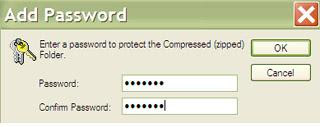
Now, you are the only person who can access files in this folder. The folder can be opened allowing the files to be seen, but you are the only one who can access them.
Right-click the folder that you want to make private and choose "Properties" (or Alt+Double-click). Go to the "Sharing" tab and check the "Make this folder private" box

Click Apply . If you do not have a password on your account, a box will pop up asking if you want to assign a password. This must be done if you want to make the folder private, so click Yes . You will need to use your password to log on to your computer from then on.
Type in a password then confirm it. Click the "Create Password" button then close the Password window.
Click OK in the Properties dialog box.
Now anyone else logged on to your computer can't access that file without knowing your password.
2. If the Folder is Zipped you can give it a unique password.
Just double-click the zipped folder. In the top menu select File then click "Add a Password".

Do you share a computer with other users and want some extra security on your folders? There are two ways to password protect a folder built into Windows XP (for other Windows flavors, there are some freeware/shareware programs out there).
Type a password into the Password box. Then again in the "Confirm Password" box.

Now, you are the only person who can access files in this folder. The folder can be opened allowing the files to be seen, but you are the only one who can access them.
Wednesday, June 4, 2008
To Be Faster - Short Cut Keys
ALT- F4 - Quit a program / Shut down
ALT-TAB - Hold down the ALT key and hit tab to cycle through open windows.
CTL-ESCAPE - Display the Start menu
SHIFT - TAB - tab backwards through a form
CTRL - X - Cut
CTRL - C - Copy
CTRL - V - Paste
F1 - Help menu
CTRL - Z - Undo
SHIFT & Restart - To restart just windows and not your whole computer, hold down the shift key when you click the OK button on the shutdown screen. Saves lots of time. (Not for XP)
CRTL-TAB - Navigate tabs on a tabbed screen
FILE & DESKTOP SHORTCUTS
Hold SHIFT while inserting a CD - Prevents the CD from "autorunning"
If an item is selected:
CTRL while dragging a file - Copies the file
CTRL - SHIFT while dragging a file - Creates a shortcut to the file
SHIFT - DELETE - Deletes an item without sending it to the recycle bin.
ALT-ENTER - Display a file's properties.
F2 - To rename the file
In Windows Explorer:
LEFT ARROW - Collapse the current selection if it is expanded
NUM LOCK-MINUS SIGN (-) - Collapse the selected folder
RIGHT ARROW - Expand the current selection if it is collapsed -Or- Select the first subfolder
NUM LOCK- * Expand all folders below the current selection
NUM LOCK- PLUS SIGN (+) - Expand the selected folder
F6 - Switch between left and right panes
In My Computer:
BACKSPACE - View the folder one level up
ALT- RIGHT ARROW - Move forward to a previous view
ALT- LEFT ARROW -Move backward to a previous view
INTERNET BROWSER SHORTCUTS
For Internet Explorer 6 and Netscape 7 (may work in older versions)
Open History Window – Ctrl+H
Reload - Ctrl+R
Back (previous page) – Alt+Left or Alt+Backspace
Forward (Next page) – Alt+Right Arrow
Stop – Esc
Home - Alt+Home
Go to Bottom of Page – End
Go to Top of Page – Home
New Window - Ctrl+N
Close Window- Ctrl+W
Go Up one Line - Up Arrow
Go Down One Line - Down Arrow
Full Screen (toggle) - F11
Find on Page - Ctrl+F
Add Current Page to Favorites - Ctrl+D
Print Current Page or Active Frame - Ctrl+P
Organize Favorites (IE)/ Manage Bookmarks (NS) - Ctrl+B
Maximize a Window - Alt+Space+x
Minimize a window- Alt+Space+N
Scroll page up - Alt+Up Arrow
Scroll page down - Alt+Down Arrow
Internet Explorer ONLY
Open Favorites Bar - Ctrl+I
Select text in address bar - Alt+D
A faster way to type in addresses with IE is to just type in the name of the site:
Type the site you want
and hit CTRL + Enter. The "http://www . " and ".com" will be added for you!
Netscape ONLY
Open / Close Sidebar Panel (toggle) - F9
Select text in Location Bar - Ctrl+L
Force Reload (not from Cache) - Ctrl+Shift+R
Zoom Text Smaller - Ctrl+- (minus)
Zoom text larger - Ctrl+= (plus sign)
WINDOWS KEY SHORTCUTS
The Windows key can be used in conjunction with other keys to act as a keyboard shortcut for faster access to menu commands. Now, while the Alt key tends to open program menus (ex: Alt+F opens the File menu and Alt+E opens the Edit menu) and the Ctrl key performs actual operations (ex: Ctrl+C will copy and Ctrl+V will paste), the Windows key will open various Windows tools...
Win key + R will open the Start menu's Run box
Win key + F will open the Start menu's Find window
Win key + E will quickly launch Explorer
Win key + Pause/Break will open the System Properties window
Win key + M will Minimize all windows
Win key + Shift + M will undo Minimize all windows
Win key + D will switch between minimizing all open programs and showing them all
Win key + Tab will cycle through items on the taskbar
Win key by itself will open the Start menu
You can also open programs or folders on your desktop by pressing the Windows key + the first letter of the program/folder/shortcut + Enter . Sounds kinda tedious, but if you're in a bind with your mouse, it can come in quite handy.
ARROW TRICKS
Here's a cool little arrow trick to try with word processing programs. Next time you're using your arrow keys to go from one area of a sentence to another (left and right arrows), hold down your CTRL key. Instead of moving one space at a time, you'll go one word at a time.
If you're using the up and down arrows to go from line to line, holding down the CTRL key will make your cursor jump from paragraph to paragraph (well, from carriage return to carriage return anyway).
One last thing, if you hold down the SHIFT key while you do this (i.e. hold down SHIFT + CTRL at the same time), you select text as you arrow along.
I've tested this in MS Word and Wordpad, but it *should* work no matter what word processing program you use.
HOME / END KEY FUN
Do you ever find yourself scrolling through a huge folder ? Well, if you need to get to the beginning or the end quickly, just press Ctrl+Home . If you want to get to the end, click Ctrl+End.
Hey, that's not all!
This little trick works on more than just folders. If you use the Home key in a word processor, it goes to the beginning of the line you're currently working on. If you hit the END key, it should head to the end of the current line. If you pair Home & End up with the Ctrl key in a word processor, you will be whisked away to the beginning or end of the document. Again, this should work, but it depends on your word processor.
Speedup your work by using keyboard more and mouse less.
Useful Shortcut:
Start + M: Minimizes all open windows
Start + Shift + M: Maximizes All Windows
Start + E: Runs Windows Explorer
Start + R: Open the RUN Dialog Box
Start + F: Open the Search Results Dialog box
Start + CTRL + F: Opens the Search Results-Computer dialog Box (if the computer is connected to a network)
Start + Pause (Break): Opens the System Properties Dialog Box
Windows System Key Combinations:
F1: Help
CTRL + ESC: Open Start menu
ALT + TAB: Switch between open programs
ALT + F4: Quit program
SHIFT + DELETE: Delete item permanently
Windows Program Key Combinations:
CTRL + C: Copy
CTRL + X: Cut
CTRL + V: Paste
CTRL + Z: Undo
CTRL + B: Bold
CTRL + U: Underline
CTRL + I: Italic
Mouse Click/Keyboard Modifier Combinations for Shell Objects:
SHIFT + right click: Displays a shortcut menu containing alternative commands
SHIFT + double click: Runs the alternate default command (the second item on the menu)
ALT + double click: Displays properties
SHIFT + DELETE: Deletes an item immediately without placing it in the Recycle Bin
General Keyboard-Only Commands:
F1: Starts Windows Help
F10: Activates menu bar options
SHIFT + F10: Opens a shortcut menu for the selected item (this is the same as right-clicking an object
CTRL + ESC: Opens the Start menu (use the ARROW keys to select an item)
CTRL + ESC or ESC: Selects the Start button (press TAB to select the taskbar, or press SHIFT+F10 for a context menu)
ALT + DOWN ARROW: Opens a drop-down list box
ALT + TAB: Switch to another running program (hold down the ALT key and then press the TAB key to view the task-switching window)
SHIFT: Press and hold down the SHIFT key while you insert a CD-ROM to bypass the automatic-run feature
ALT + SPACE: Displays the main window's System menu (from the System menu, you can restore, move, resize, minimize, maximize, or close the window)
ALT +- (ALT + hyphen): Displays the Multiple Document Interface (MDI)child window's System menu (from the MDI child window's System menu, you can restore, move, resize, minimize, maximize, or close the child window)
CTRL + TAB: Switch to the next child window of a Multiple Document Interface (MDI) program
ALT + underlined letter in menu: Opens the menu
ALT + F4: Closes the current window
CTRL + F4: Closes the current Multiple Document Interface (MDI) window
ALT + F6: Switch between multiple windows in the same program (for example, when the Notepad Find dialog box is displayed
ALT + F6: switches between the Find dialog box and the main Notepad window)
Shell Objects and General Folder/Windows Explorer Shortcuts For a selected object:
F2: Rename object
F3: Find all files
CTRL + X: Cut
CTRL + C: Copy
CTRL + V: Paste
SHIFT + DELETE: Delete selection immediately, without moving the item to the Recycle Bin
ALT + ENTER: Open the properties for the selected object
To Copy a File: Press and hold down the CTRL key while you drag the file to another folder.
To Create a Shortcut: Press and hold down CTRL+SHIFT while you drag a file to the desktop or a folder.
General Folder/Shortcut Control:
F4: Selects the Go To A Different Folder box and moves down the entries in the box (if the toolbar is active in Windows Explorer)
F5: Refreshes the current window.
F6: Moves among panes in Windows Explorer
CTRL + G: Opens the Go To Folder tool (in Windows 95 Windows Explorer only)
CTRL + Z: Undo the last command
CTRL + A: Select all the items in the current window
BACKSPACE: Switch to the parent folder
SHIFT + click + Close button: For folders, close the current folder plus all parent folders
Windows Explorer Tree Control:
Numeric Keypad *: Expands everything under the current selection
Numeric Keypad +: Expands the current selection
Numeric Keypad -: Collapses the current selection.
RIGHT ARROW: Expands the current selection if it is not expanded, otherwise goes to the first child
LEFT ARROW: Collapses the current selection if it is expanded, otherwise goes to the parent
Properties Control:
CTRL + TAB/CTRL + SHIFT + TAB: Move through the property tabs
Accessibility Shortcuts:
Press SHIFT five times: Toggles Sticky Keys on and off
Press down and hold the right SHIFT key for eight seconds: Toggles FilterKeys on and off
Press down and hold the NUM LOCK key for five seconds: Toggles ToggleKeys on and off
Left ALT + left SHIFT+NUM LOCK: Toggles MouseKeys on and off
Left ALT + left SHIFT+PRINT SCREEN: Toggles high contrast on and off
Microsoft Natural Keyboard Keys:
Windows Logo: Start menu
Windows Logo + R: Run dialog box
Windows Logo + M: Minimize all
SHIFT + Windows Logo+M: Undo minimize all
Windows Logo + F1: Help
Windows Logo + E: Windows Explorer
Windows Logo + F: Find files or folders
Windows Logo + D: Minimizes all open windows and displays the desktop
CTRL + Windows Logo + F: Find computer
CTRL + Windows Logo + TAB: Moves focus from Start, to the Quick Launch toolbar, to the system tray (use RIGHT ARROW or LEFT ARROW to move focus to items on the Quick Launch toolbar and the system tray)
Windows Logo + TAB: Cycle through taskbar buttons
Windows Logo + Break: System Properties dialog box
Application key: Displays a shortcut menu for the selected item
Microsoft Natural Keyboard with IntelliType Software Installed:
Windows Logo + L: Log off Windows
Windows Logo + P: Starts Print Manager
Windows Logo + C: Opens Control Panel
Windows Logo + V: Starts Clipboard
Windows Logo + K: Opens Keyboard Properties dialog box
Windows Logo + I: Opens Mouse Properties dialog box
Windows Logo + A: Starts Accessibility Options (if installed)
Windows Logo + SPACEBAR: Displays the list of Microsoft IntelliType shortcut keys
Windows Logo + S: Toggles CAPS LOCK on and off
Dialog Box Keyboard Commands:
TAB: Move to the next control in the dialog box
SHIFT + TAB: Move to the previous control in the dialog box
SPACEBAR: If the current control is a button, this clicks the button. If the current control is a check box, this toggles the check box. If the current control is an option, this selects the option.
ENTER: Equivalent to clicking the selected button (the button with the outline)
ESC: Equivalent to clicking the Cancel button
ALT + underlined letter in dialog box item: Move to the corresponding item
ALT-TAB - Hold down the ALT key and hit tab to cycle through open windows.
CTL-ESCAPE - Display the Start menu
SHIFT - TAB - tab backwards through a form
CTRL - X - Cut
CTRL - C - Copy
CTRL - V - Paste
F1 - Help menu
CTRL - Z - Undo
SHIFT & Restart - To restart just windows and not your whole computer, hold down the shift key when you click the OK button on the shutdown screen. Saves lots of time. (Not for XP)
CRTL-TAB - Navigate tabs on a tabbed screen
FILE & DESKTOP SHORTCUTS
Hold SHIFT while inserting a CD - Prevents the CD from "autorunning"
If an item is selected:
CTRL while dragging a file - Copies the file
CTRL - SHIFT while dragging a file - Creates a shortcut to the file
SHIFT - DELETE - Deletes an item without sending it to the recycle bin.
ALT-ENTER - Display a file's properties.
F2 - To rename the file
In Windows Explorer:
LEFT ARROW - Collapse the current selection if it is expanded
NUM LOCK-MINUS SIGN (-) - Collapse the selected folder
RIGHT ARROW - Expand the current selection if it is collapsed -Or- Select the first subfolder
NUM LOCK- * Expand all folders below the current selection
NUM LOCK- PLUS SIGN (+) - Expand the selected folder
F6 - Switch between left and right panes
In My Computer:
BACKSPACE - View the folder one level up
ALT- RIGHT ARROW - Move forward to a previous view
ALT- LEFT ARROW -Move backward to a previous view
INTERNET BROWSER SHORTCUTS
For Internet Explorer 6 and Netscape 7 (may work in older versions)
Open History Window – Ctrl+H
Reload - Ctrl+R
Back (previous page) – Alt+Left or Alt+Backspace
Forward (Next page) – Alt+Right Arrow
Stop – Esc
Home - Alt+Home
Go to Bottom of Page – End
Go to Top of Page – Home
New Window - Ctrl+N
Close Window- Ctrl+W
Go Up one Line - Up Arrow
Go Down One Line - Down Arrow
Full Screen (toggle) - F11
Find on Page - Ctrl+F
Add Current Page to Favorites - Ctrl+D
Print Current Page or Active Frame - Ctrl+P
Organize Favorites (IE)/ Manage Bookmarks (NS) - Ctrl+B
Maximize a Window - Alt+Space+x
Minimize a window- Alt+Space+N
Scroll page up - Alt+Up Arrow
Scroll page down - Alt+Down Arrow
Internet Explorer ONLY
Open Favorites Bar - Ctrl+I
Select text in address bar - Alt+D
A faster way to type in addresses with IE is to just type in the name of the site:
Type the site you want
and hit CTRL + Enter. The "http://www . " and ".com" will be added for you!
Netscape ONLY
Open / Close Sidebar Panel (toggle) - F9
Select text in Location Bar - Ctrl+L
Force Reload (not from Cache) - Ctrl+Shift+R
Zoom Text Smaller - Ctrl+- (minus)
Zoom text larger - Ctrl+= (plus sign)
WINDOWS KEY SHORTCUTS
The Windows key can be used in conjunction with other keys to act as a keyboard shortcut for faster access to menu commands. Now, while the Alt key tends to open program menus (ex: Alt+F opens the File menu and Alt+E opens the Edit menu) and the Ctrl key performs actual operations (ex: Ctrl+C will copy and Ctrl+V will paste), the Windows key will open various Windows tools...
Win key + R will open the Start menu's Run box
Win key + F will open the Start menu's Find window
Win key + E will quickly launch Explorer
Win key + Pause/Break will open the System Properties window
Win key + M will Minimize all windows
Win key + Shift + M will undo Minimize all windows
Win key + D will switch between minimizing all open programs and showing them all
Win key + Tab will cycle through items on the taskbar
Win key by itself will open the Start menu
You can also open programs or folders on your desktop by pressing the Windows key + the first letter of the program/folder/shortcut + Enter . Sounds kinda tedious, but if you're in a bind with your mouse, it can come in quite handy.
ARROW TRICKS
Here's a cool little arrow trick to try with word processing programs. Next time you're using your arrow keys to go from one area of a sentence to another (left and right arrows), hold down your CTRL key. Instead of moving one space at a time, you'll go one word at a time.
If you're using the up and down arrows to go from line to line, holding down the CTRL key will make your cursor jump from paragraph to paragraph (well, from carriage return to carriage return anyway).
One last thing, if you hold down the SHIFT key while you do this (i.e. hold down SHIFT + CTRL at the same time), you select text as you arrow along.
I've tested this in MS Word and Wordpad, but it *should* work no matter what word processing program you use.
HOME / END KEY FUN
Do you ever find yourself scrolling through a huge folder ? Well, if you need to get to the beginning or the end quickly, just press Ctrl+Home . If you want to get to the end, click Ctrl+End.
Hey, that's not all!
This little trick works on more than just folders. If you use the Home key in a word processor, it goes to the beginning of the line you're currently working on. If you hit the END key, it should head to the end of the current line. If you pair Home & End up with the Ctrl key in a word processor, you will be whisked away to the beginning or end of the document. Again, this should work, but it depends on your word processor.
Speedup your work by using keyboard more and mouse less.
Useful Shortcut:
Start + M: Minimizes all open windows
Start + Shift + M: Maximizes All Windows
Start + E: Runs Windows Explorer
Start + R: Open the RUN Dialog Box
Start + F: Open the Search Results Dialog box
Start + CTRL + F: Opens the Search Results-Computer dialog Box (if the computer is connected to a network)
Start + Pause (Break): Opens the System Properties Dialog Box
Windows System Key Combinations:
F1: Help
CTRL + ESC: Open Start menu
ALT + TAB: Switch between open programs
ALT + F4: Quit program
SHIFT + DELETE: Delete item permanently
Windows Program Key Combinations:
CTRL + C: Copy
CTRL + X: Cut
CTRL + V: Paste
CTRL + Z: Undo
CTRL + B: Bold
CTRL + U: Underline
CTRL + I: Italic
Mouse Click/Keyboard Modifier Combinations for Shell Objects:
SHIFT + right click: Displays a shortcut menu containing alternative commands
SHIFT + double click: Runs the alternate default command (the second item on the menu)
ALT + double click: Displays properties
SHIFT + DELETE: Deletes an item immediately without placing it in the Recycle Bin
General Keyboard-Only Commands:
F1: Starts Windows Help
F10: Activates menu bar options
SHIFT + F10: Opens a shortcut menu for the selected item (this is the same as right-clicking an object
CTRL + ESC: Opens the Start menu (use the ARROW keys to select an item)
CTRL + ESC or ESC: Selects the Start button (press TAB to select the taskbar, or press SHIFT+F10 for a context menu)
ALT + DOWN ARROW: Opens a drop-down list box
ALT + TAB: Switch to another running program (hold down the ALT key and then press the TAB key to view the task-switching window)
SHIFT: Press and hold down the SHIFT key while you insert a CD-ROM to bypass the automatic-run feature
ALT + SPACE: Displays the main window's System menu (from the System menu, you can restore, move, resize, minimize, maximize, or close the window)
ALT +- (ALT + hyphen): Displays the Multiple Document Interface (MDI)child window's System menu (from the MDI child window's System menu, you can restore, move, resize, minimize, maximize, or close the child window)
CTRL + TAB: Switch to the next child window of a Multiple Document Interface (MDI) program
ALT + underlined letter in menu: Opens the menu
ALT + F4: Closes the current window
CTRL + F4: Closes the current Multiple Document Interface (MDI) window
ALT + F6: Switch between multiple windows in the same program (for example, when the Notepad Find dialog box is displayed
ALT + F6: switches between the Find dialog box and the main Notepad window)
Shell Objects and General Folder/Windows Explorer Shortcuts For a selected object:
F2: Rename object
F3: Find all files
CTRL + X: Cut
CTRL + C: Copy
CTRL + V: Paste
SHIFT + DELETE: Delete selection immediately, without moving the item to the Recycle Bin
ALT + ENTER: Open the properties for the selected object
To Copy a File: Press and hold down the CTRL key while you drag the file to another folder.
To Create a Shortcut: Press and hold down CTRL+SHIFT while you drag a file to the desktop or a folder.
General Folder/Shortcut Control:
F4: Selects the Go To A Different Folder box and moves down the entries in the box (if the toolbar is active in Windows Explorer)
F5: Refreshes the current window.
F6: Moves among panes in Windows Explorer
CTRL + G: Opens the Go To Folder tool (in Windows 95 Windows Explorer only)
CTRL + Z: Undo the last command
CTRL + A: Select all the items in the current window
BACKSPACE: Switch to the parent folder
SHIFT + click + Close button: For folders, close the current folder plus all parent folders
Windows Explorer Tree Control:
Numeric Keypad *: Expands everything under the current selection
Numeric Keypad +: Expands the current selection
Numeric Keypad -: Collapses the current selection.
RIGHT ARROW: Expands the current selection if it is not expanded, otherwise goes to the first child
LEFT ARROW: Collapses the current selection if it is expanded, otherwise goes to the parent
Properties Control:
CTRL + TAB/CTRL + SHIFT + TAB: Move through the property tabs
Accessibility Shortcuts:
Press SHIFT five times: Toggles Sticky Keys on and off
Press down and hold the right SHIFT key for eight seconds: Toggles FilterKeys on and off
Press down and hold the NUM LOCK key for five seconds: Toggles ToggleKeys on and off
Left ALT + left SHIFT+NUM LOCK: Toggles MouseKeys on and off
Left ALT + left SHIFT+PRINT SCREEN: Toggles high contrast on and off
Microsoft Natural Keyboard Keys:
Windows Logo: Start menu
Windows Logo + R: Run dialog box
Windows Logo + M: Minimize all
SHIFT + Windows Logo+M: Undo minimize all
Windows Logo + F1: Help
Windows Logo + E: Windows Explorer
Windows Logo + F: Find files or folders
Windows Logo + D: Minimizes all open windows and displays the desktop
CTRL + Windows Logo + F: Find computer
CTRL + Windows Logo + TAB: Moves focus from Start, to the Quick Launch toolbar, to the system tray (use RIGHT ARROW or LEFT ARROW to move focus to items on the Quick Launch toolbar and the system tray)
Windows Logo + TAB: Cycle through taskbar buttons
Windows Logo + Break: System Properties dialog box
Application key: Displays a shortcut menu for the selected item
Microsoft Natural Keyboard with IntelliType Software Installed:
Windows Logo + L: Log off Windows
Windows Logo + P: Starts Print Manager
Windows Logo + C: Opens Control Panel
Windows Logo + V: Starts Clipboard
Windows Logo + K: Opens Keyboard Properties dialog box
Windows Logo + I: Opens Mouse Properties dialog box
Windows Logo + A: Starts Accessibility Options (if installed)
Windows Logo + SPACEBAR: Displays the list of Microsoft IntelliType shortcut keys
Windows Logo + S: Toggles CAPS LOCK on and off
Dialog Box Keyboard Commands:
TAB: Move to the next control in the dialog box
SHIFT + TAB: Move to the previous control in the dialog box
SPACEBAR: If the current control is a button, this clicks the button. If the current control is a check box, this toggles the check box. If the current control is an option, this selects the option.
ENTER: Equivalent to clicking the selected button (the button with the outline)
ESC: Equivalent to clicking the Cancel button
ALT + underlined letter in dialog box item: Move to the corresponding item
Subscribe to:
Posts (Atom)

Page Hits


 Posts
Posts

